Section 2 · Lesson 2 of 6
How to Set Up Sky Studio
Open Sky Studio in Chrome, click Get Started Free and sign up with your email address and a password; you are signed in right away. The Workspace opens on three tabs: Image, Video and Music. Credits are a one-time top-up that never expires: open the menu under your avatar, click Credits, then Buy More. The same menu sets the interface language (English, Chinese, Spanish or Japanese) and the theme.

Step 1: Create your account
- Open Sky Studio in the Chrome browser (the lessons use Chrome).
- Click Get Started Free on the home page. The sign-in page opens.
- The first time, click Sign Up, enter your email address and a password, and click Sign Up again. You can also continue with Google.
- Your account is created and you are signed in. Next time, sign in with the same email address and password.
Step 2: Get to know the Workspace
The app opens on the Workspace, with three tabs:
- Image: generate and edit pictures with models such as Nano Banana 2, GPT Image 2 and Seedream 5.0. Choose the aspect ratio and the resolution. With Nano Banana 2 you can turn on Web Grounding, which lets the model search the web for the latest information while it draws.
- Video: generate clips with the leading video models. Aspect ratios, resolutions and lengths depend on the model; a higher resolution looks sharper and costs more credits.
- Music: generate songs or instrumental tracks up to five minutes long.
Every result appears on the right, where you can view, download, reuse and organize it. Lesson 3 walks through the Image tab.
Step 3: Buy credits
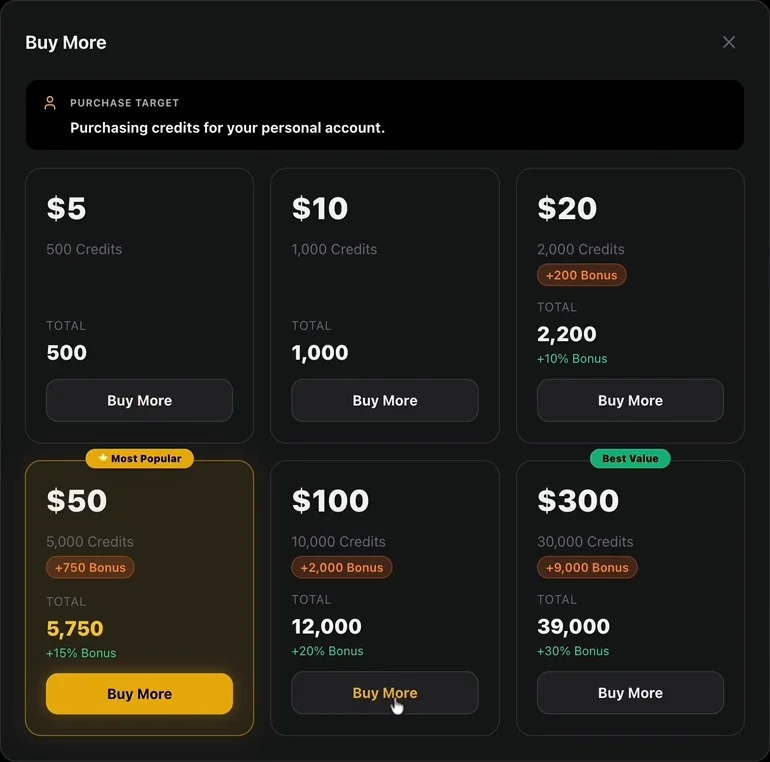
Move the pointer over your avatar in the top right corner and click Credits, then Buy More. Credits are a one-time top-up, not a subscription: they never expire, and you only use them when you generate. The cost of each generation is shown before you click Generate.
The packs run from $5 (500 credits) to $300 (39,000 credits), and the larger packs add bonus credits. The lesson picks the $50 pack, marked Most Popular: 5,000 credits plus 750 bonus credits, 5,750 in all.
On the payment page you can choose the currency and the language of the page in the lower left corner, and the country of your phone number on the right.
Step 4: Choose your language and theme
In the same menu under your avatar:
- Language: English, 中文 (Chinese), Español or 日本語.
- Theme: Default (Black), Light Mode or Cyberpunk.
Frequently asked questions
Do Sky Studio credits expire?
No. Credits are a one-time top-up: they never expire, and you use them only when you generate.
Is Sky Studio a subscription?
No. There is no monthly plan. You buy a credit pack when you need one; the larger packs add bonus credits.
Which languages does Sky Studio support?
The interface is in English, Chinese, Spanish and Japanese. You can switch at any time in the menu under your avatar.
Which browser should I use?
The lessons use Google Chrome on a computer.
Transcript
0:00 · Open Sky Studio and sign up
In this section, we'll show you how to set up your Sky Studio account and get familiar with the main interface before we begin creating. I recommend using the Chrome browser to open skystudioai.com. Once this site is open, click the Get Started Free button. You'll be taken to the sign-up and login page. If this is your first time using Sky Studio, click Sign Up to create an account. Enter your email address and password. When you're finished, click the Sign Up button. Your account will be created, and you'll be logged in automatically. From now on, you can use this email address and password to log in.
0:41 · The Workspace: Image, Video and Music
When you enter the app, the first thing you'll see under the Workspace section is three tabs: Image, Video and Music. The Image tab currently supports a range of AI models, including Google's Nano Banana, OpenAI's GPT Image and ByteDance's Seedream. You can choose the resolution. You can also turn on Web Grounding, which allows the model to search the web for the latest information when generating an image. The Video tab also includes several of the strongest video models currently available. The aspect ratios vary depending on the model. A higher resolution produces a clearer result, but it also costs more credits. The supported video duration also depends on the model. In the Music tab, you can generate music tracks up to 5 minutes long.
1:37 · Buy credits
Now let's move to the top right corner of the screen. When you move your cursor over your profile avatar, a dropdown menu appears. Click Credits to purchase more credits. Credits are purchased as a one-time top-up. They never expire, and you only use them as you generate. At the moment, the $50 package offers good value, so it is the option I recommend. Click the Buy More button to open the payment screen. In the lower left corner, you can choose your preferred payment currency and the language used on the payment page. On the right side, you can select the country associated with your phone number. I'm currently selecting Singapore.
2:23 · Choose the language and theme
In addition to credits, you can also adjust the interface language. Sky Studio currently supports four languages: English, Chinese, Spanish and Japanese. You can also choose a theme. There are three different themes available, so choose whichever one you prefer.