
Guide
AI camera-angle changes: did the person turn, or did the camera move? Image models, Qwen Angles and video orbits, tested
Ask an AI to "change the angle" of a photo and you get one of two things: the person turns while the background stays, or the camera really moves and the scene turns with it. We tested three ways on seven images. Prompting Nano Banana 2 Lite, Seedream 5.0 Flash and GPT Image 2 mostly turned the person. Qwen Angles, the model in Sky Studio's Camera Angle tool, moved the camera: every 90° side view worked, even in closed rooms, and a dedicated instruction took it directly behind the subject. A video orbit with MiniMax H3 or Gemini Omni 1.1 Flash also moved the camera: H3 reached the back view but changed the room, Omni kept the room but stopped at three-quarters.
"Changing the angle" can mean two very different results
Turning a frontal photo into a side or back view sounds like a one-line request, but the results fall into two groups:
- The person turned. The subject rotates and the camera stays where it was. The same background is still behind them, they just face another way. If a shelf was behind them, it is still behind their back.
- The camera moved. The camera really went around to the other side. The pose is unchanged, but the whole space turns: what was behind the person is now behind the camera, and we see the half of the room the person is looking at.
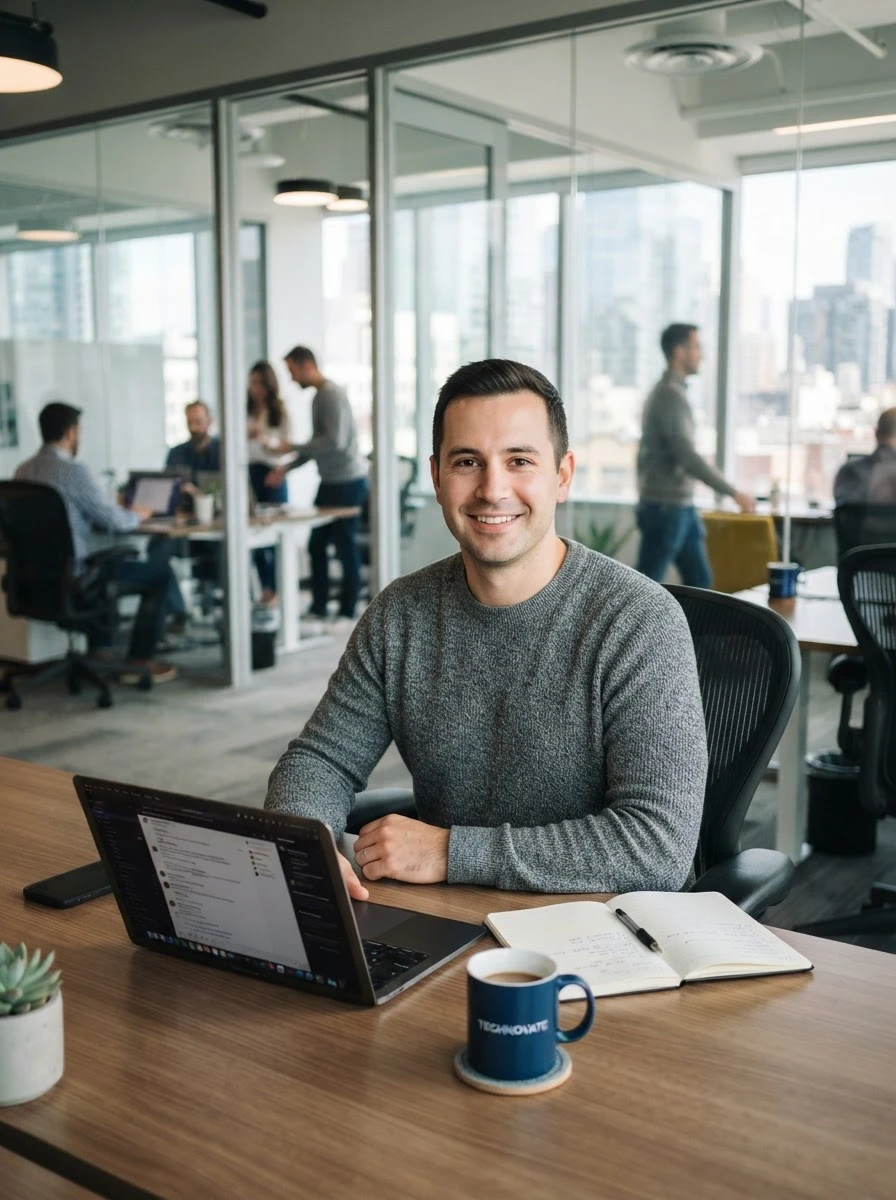
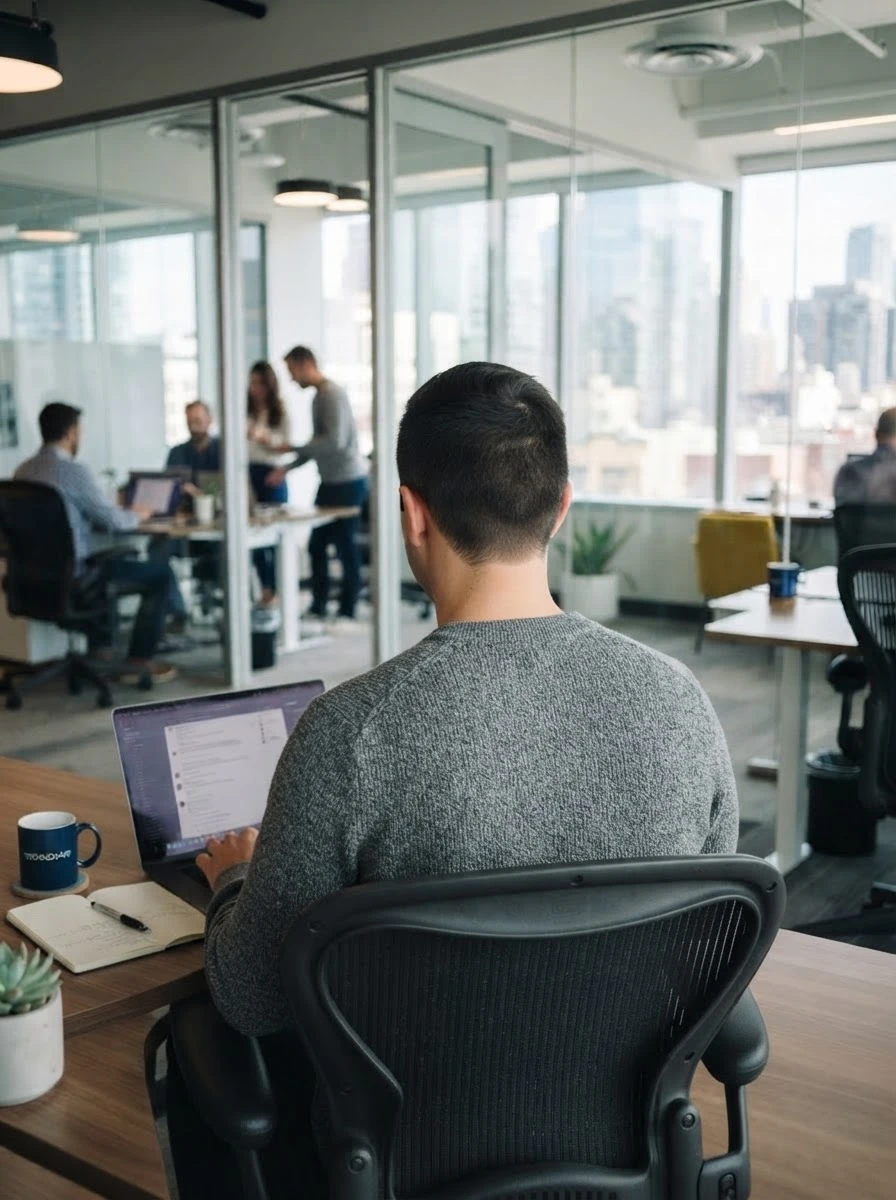
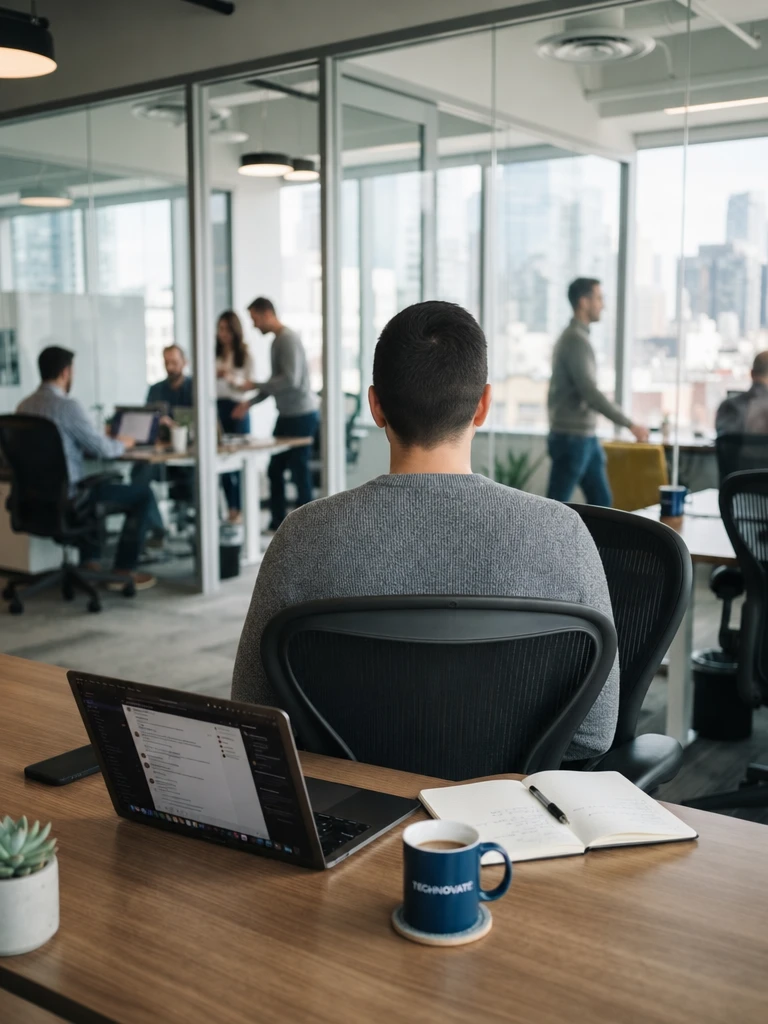
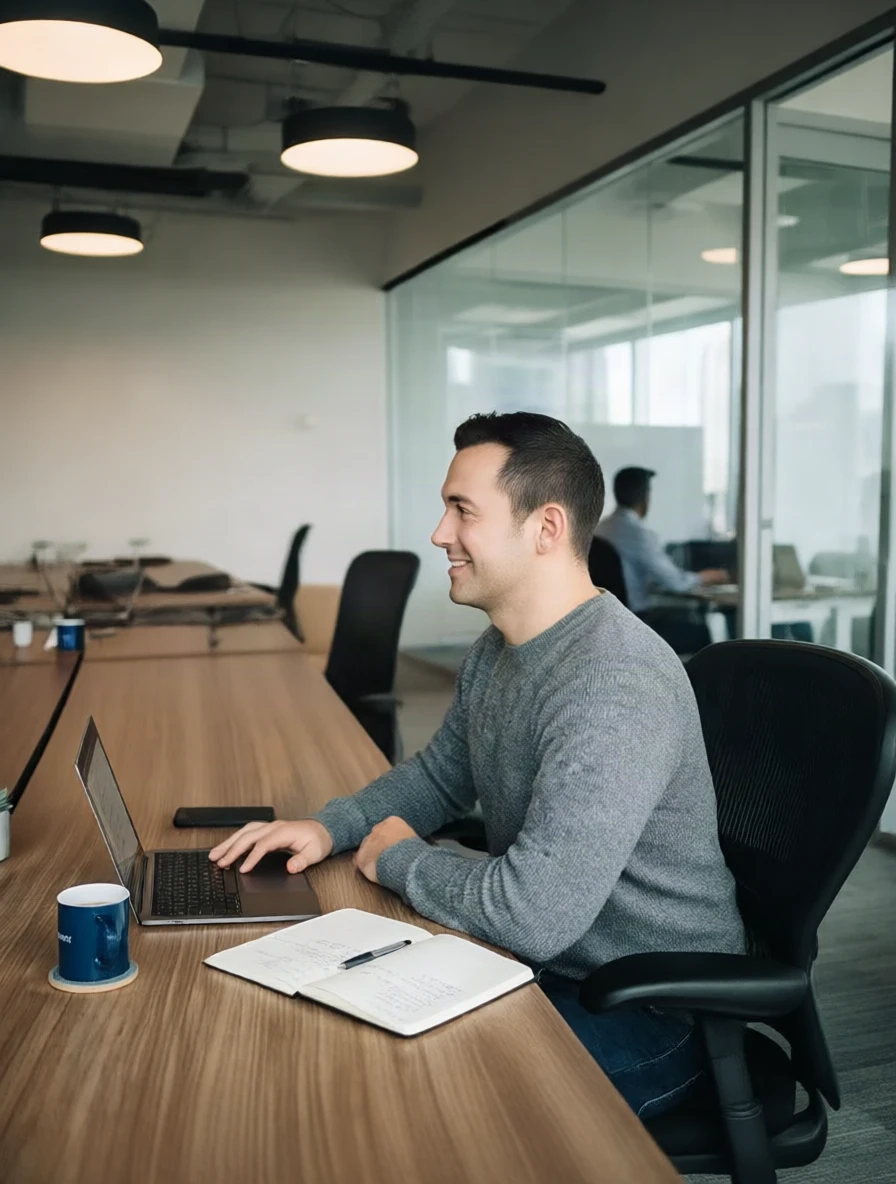
Back views show the difference most clearly. The office set below is the plainest example: asked to "move the camera behind" the man, Nano Banana 2 Lite and GPT Image 2 both turned him towards the window, yet the window and the city view are still in the frame, and in the original they were behind him. The person turned; the camera did not move. On the right is the Camera Angle tool at 90°: the camera is at the side of the desk, the laptop, notebook and mug are seen side-on, and the office stretches away into the frame.
What we tested
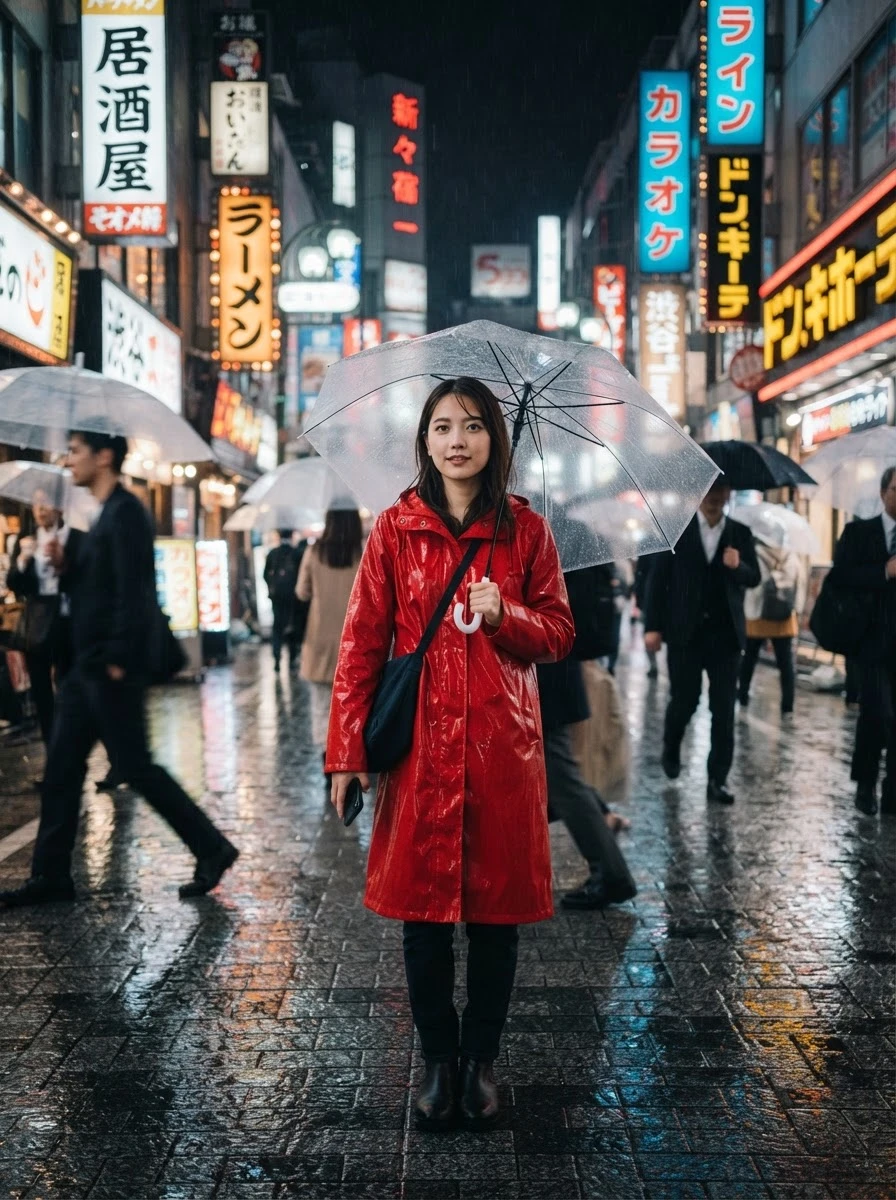
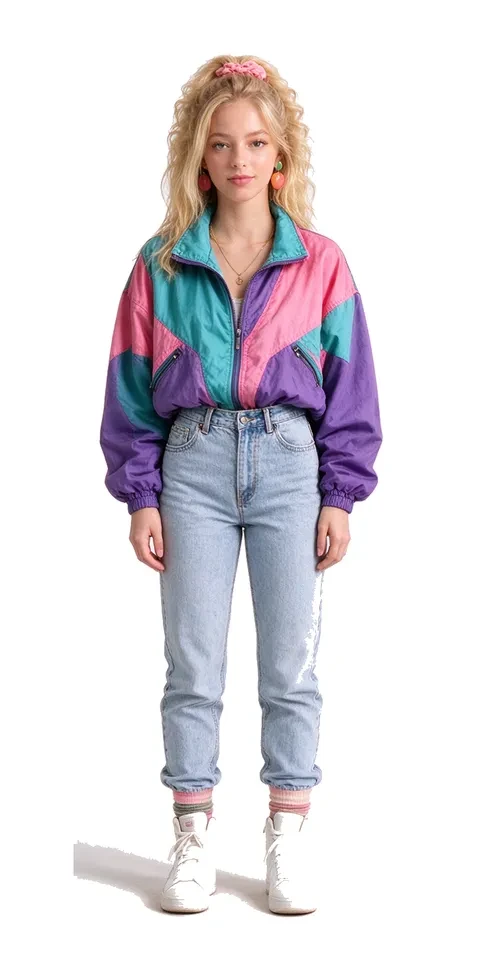
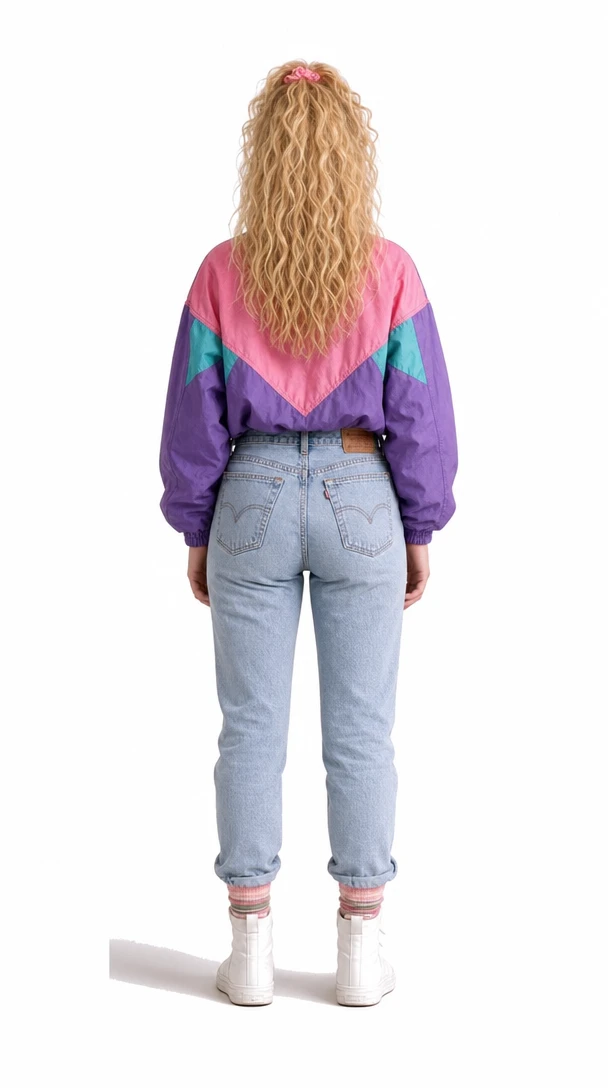
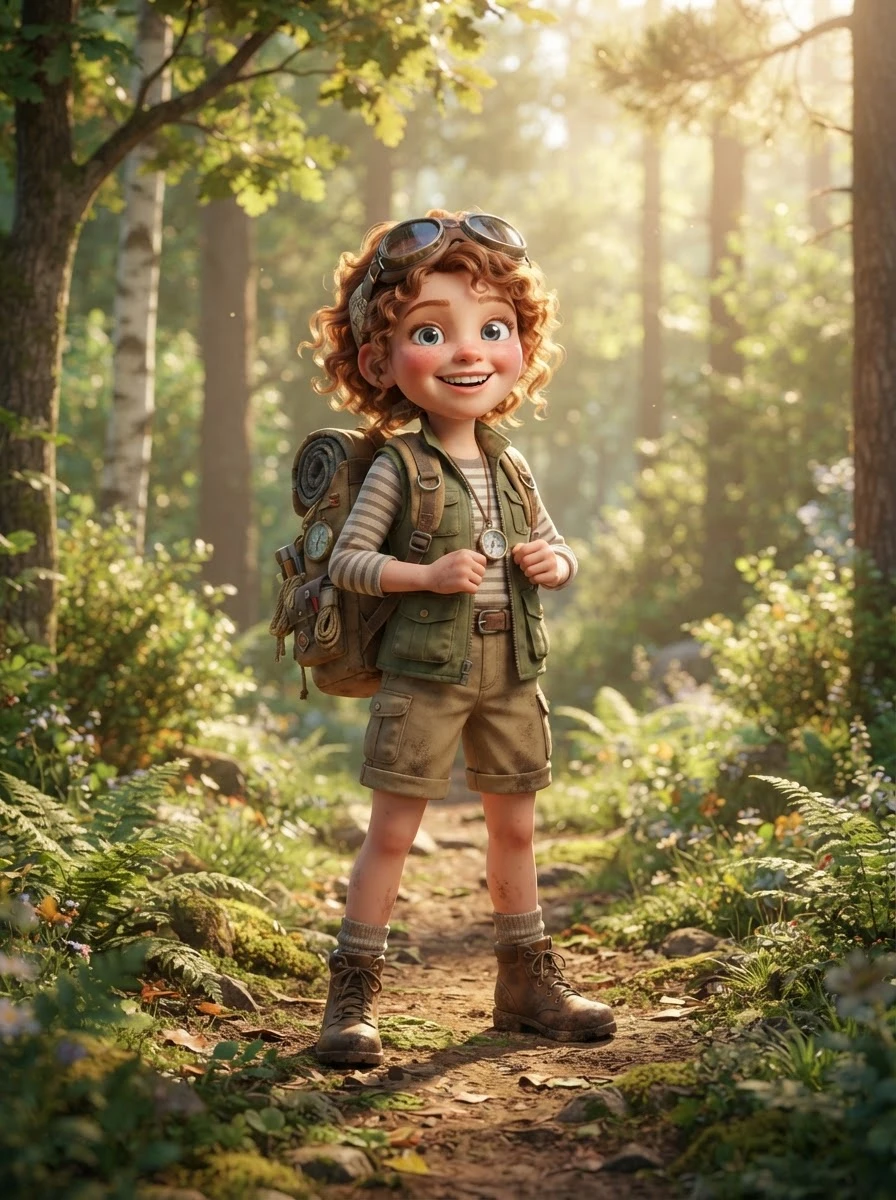
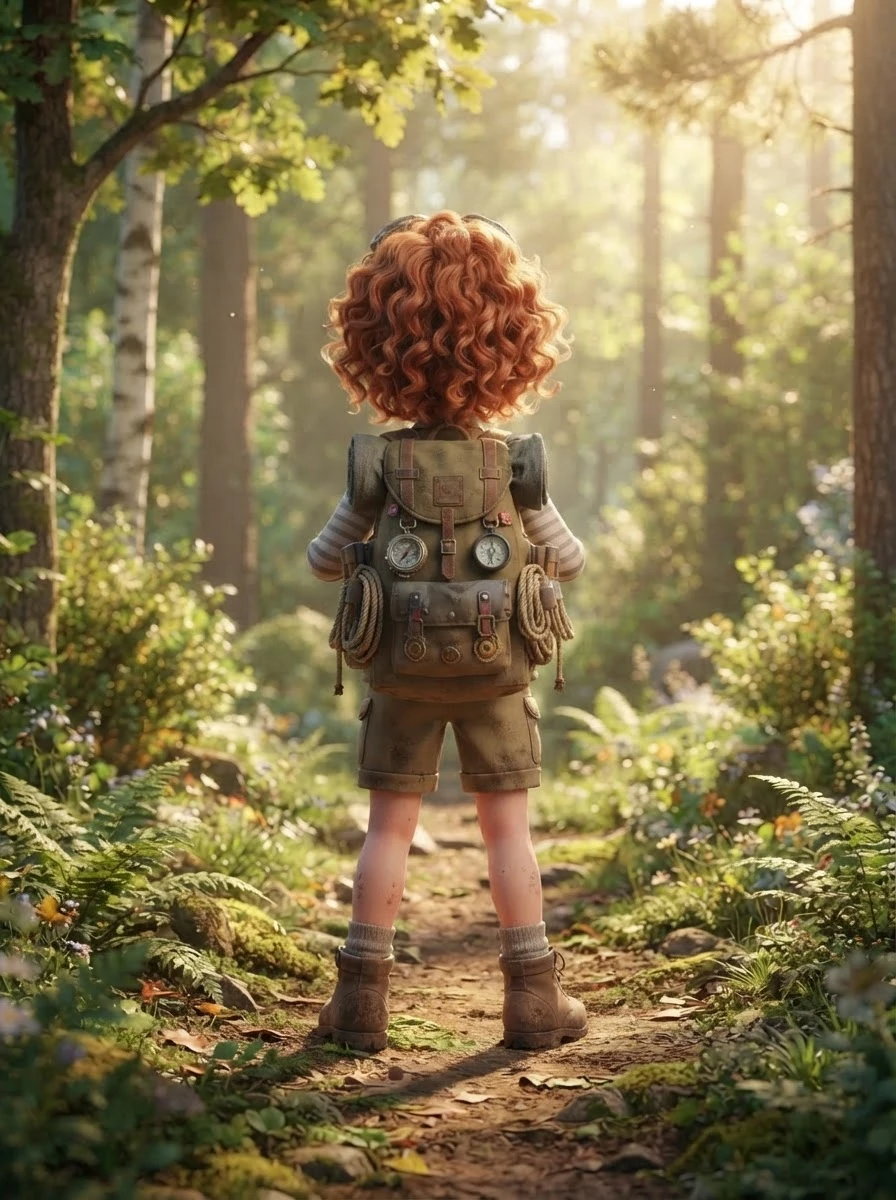
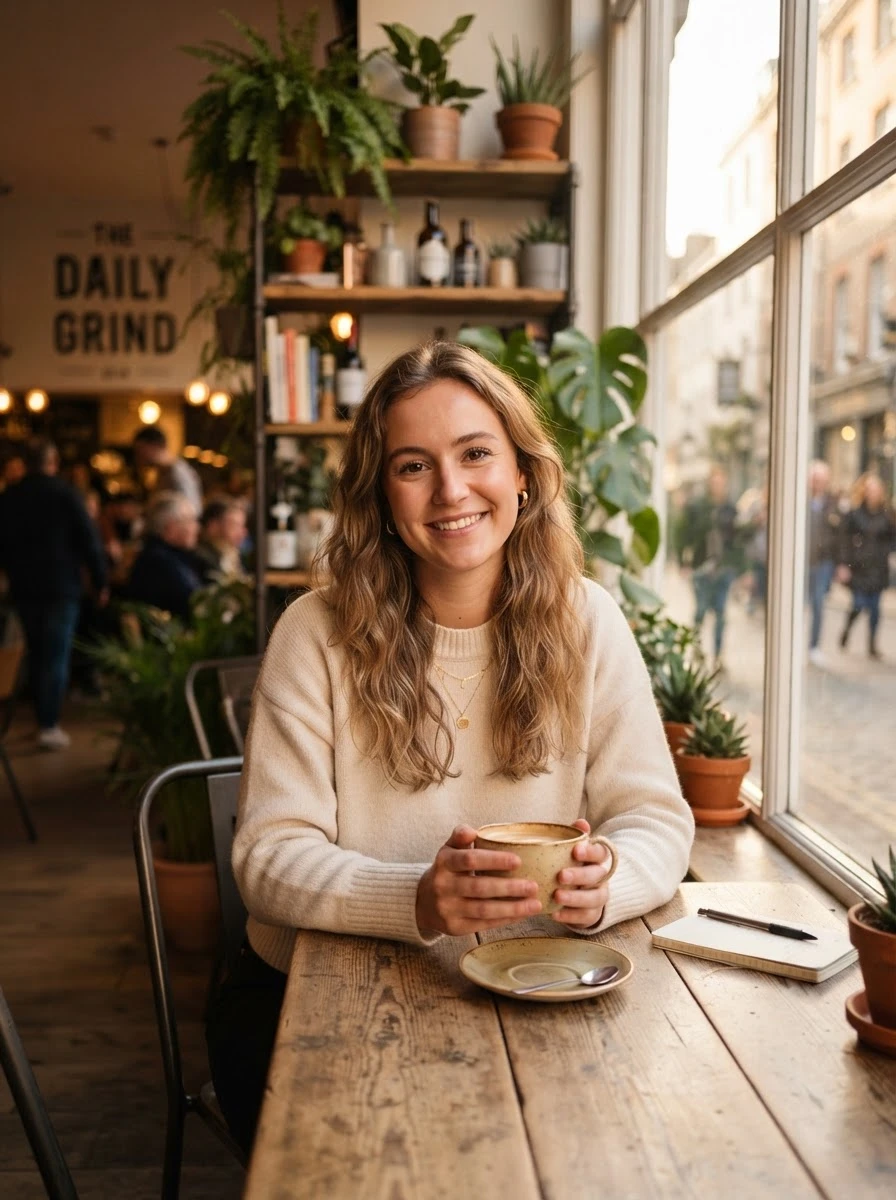
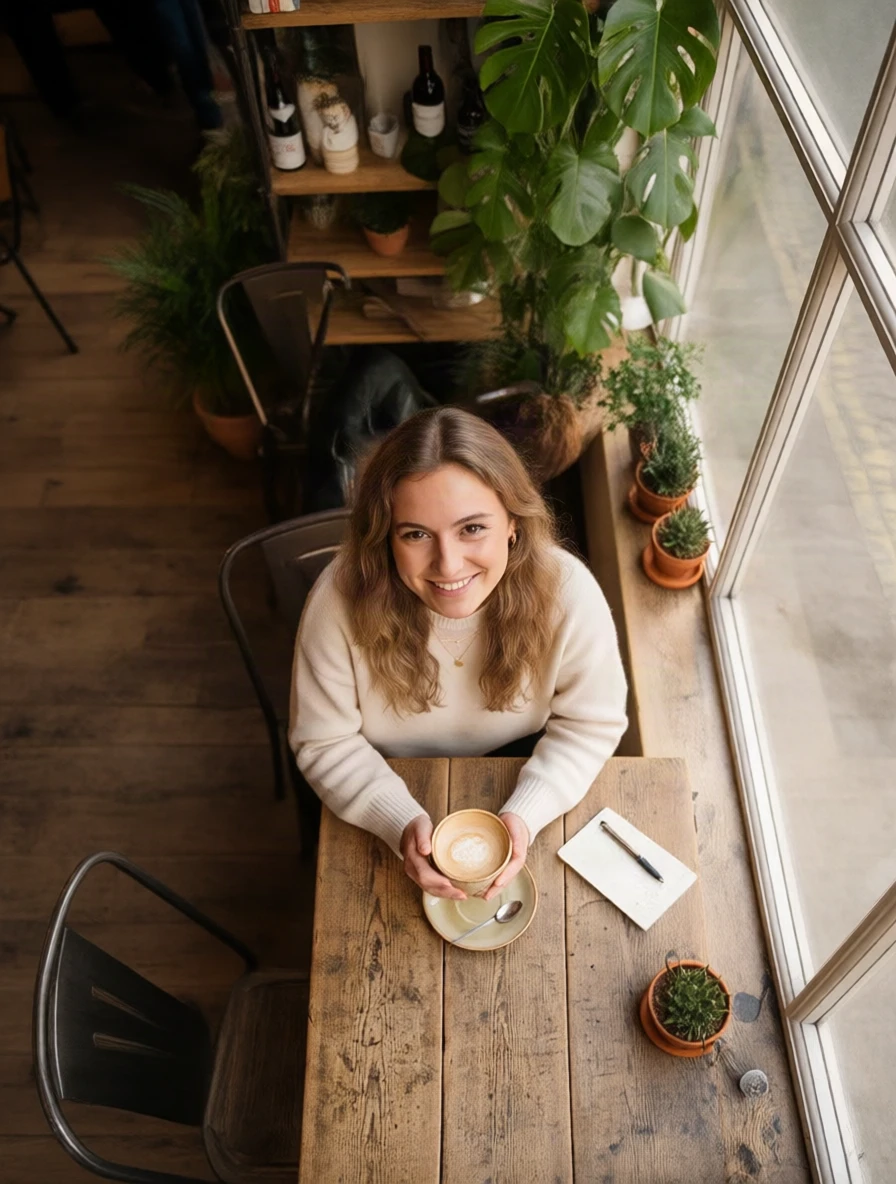
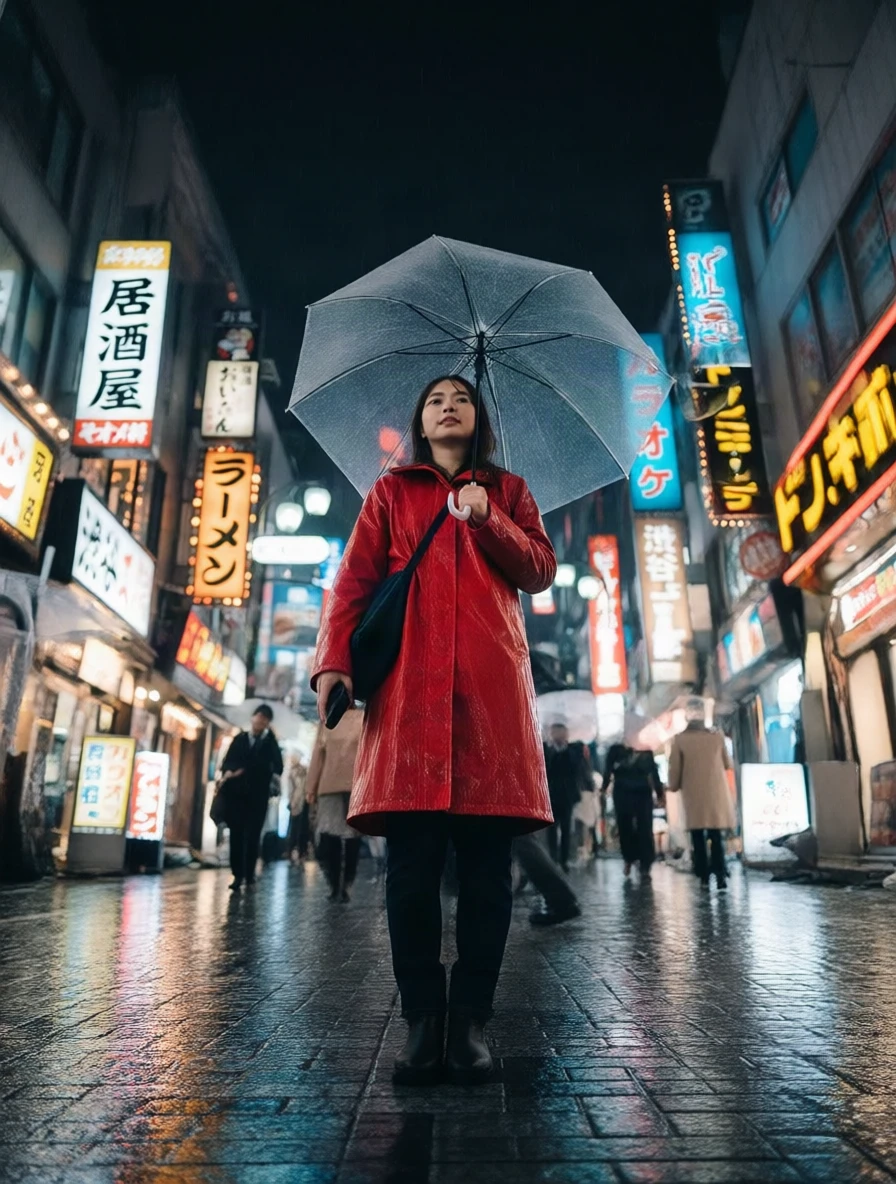
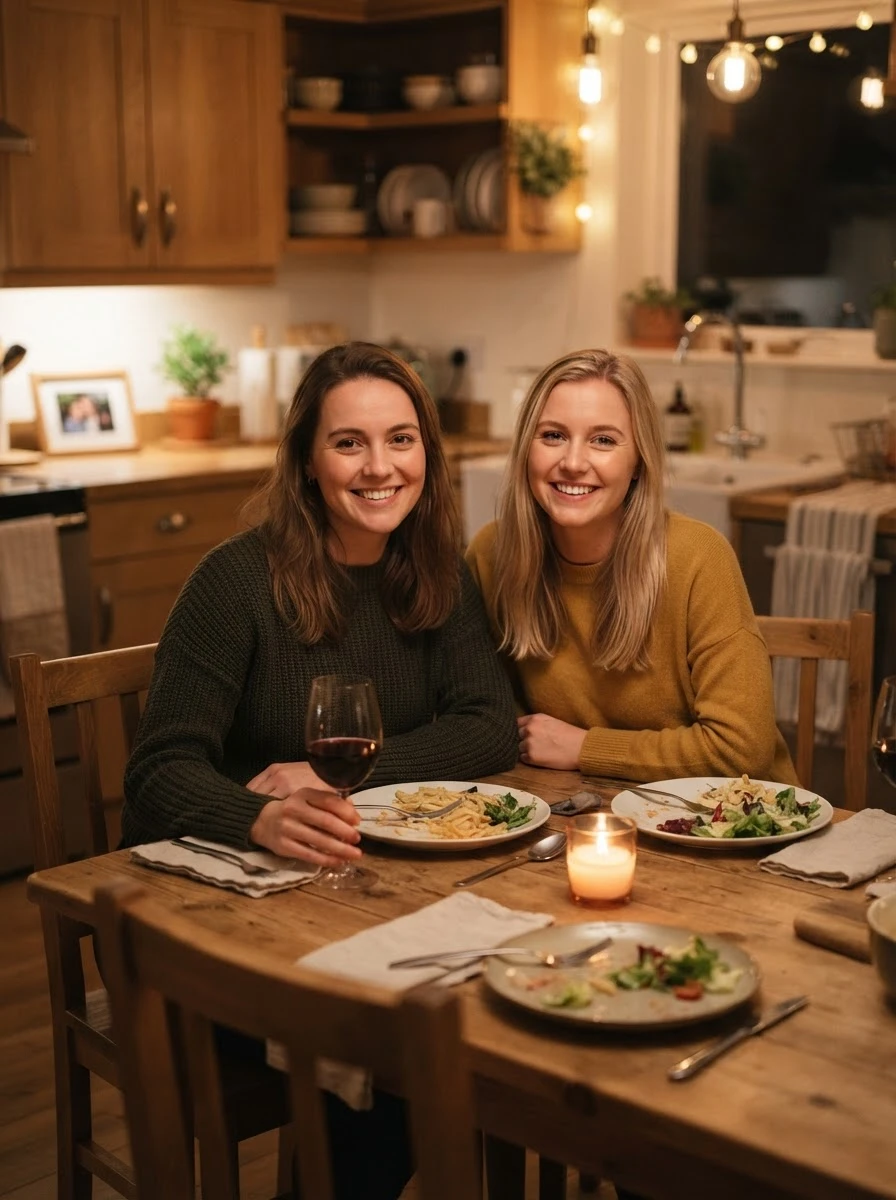
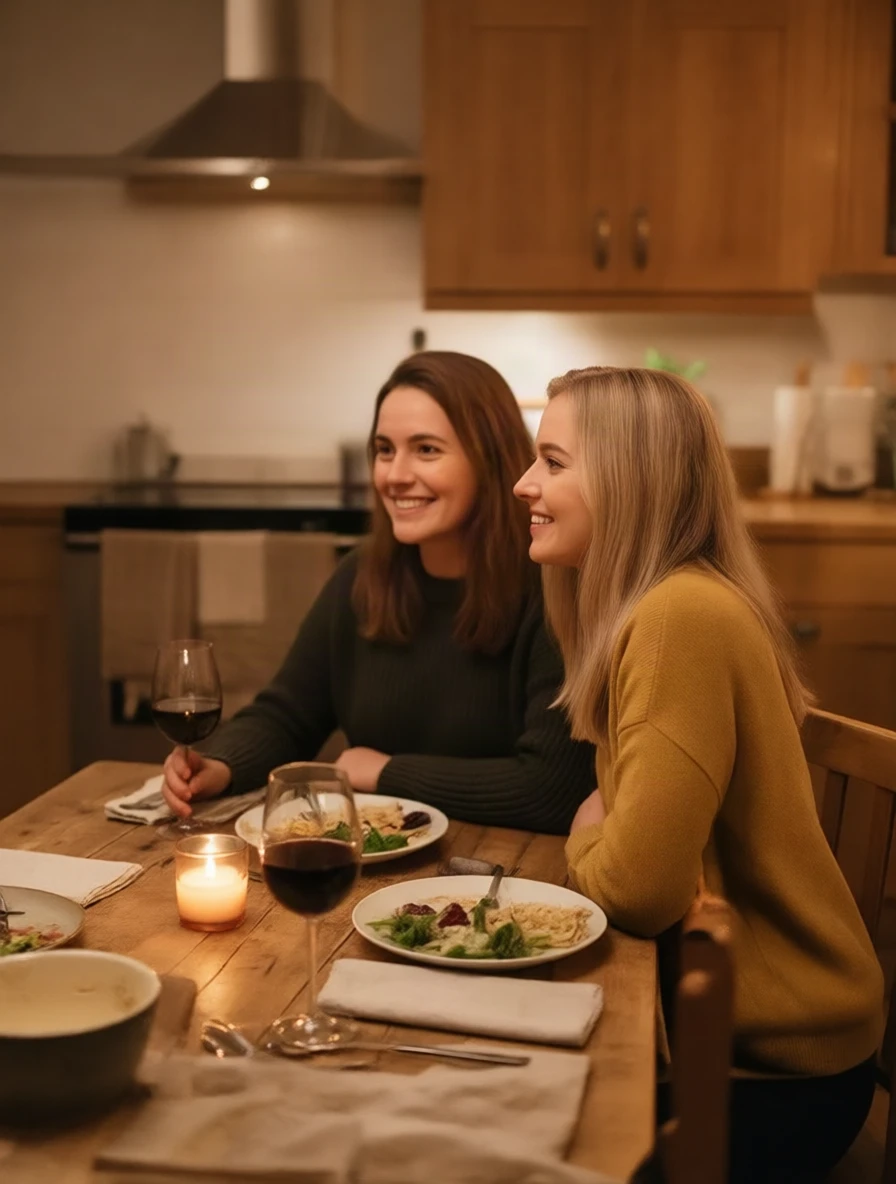
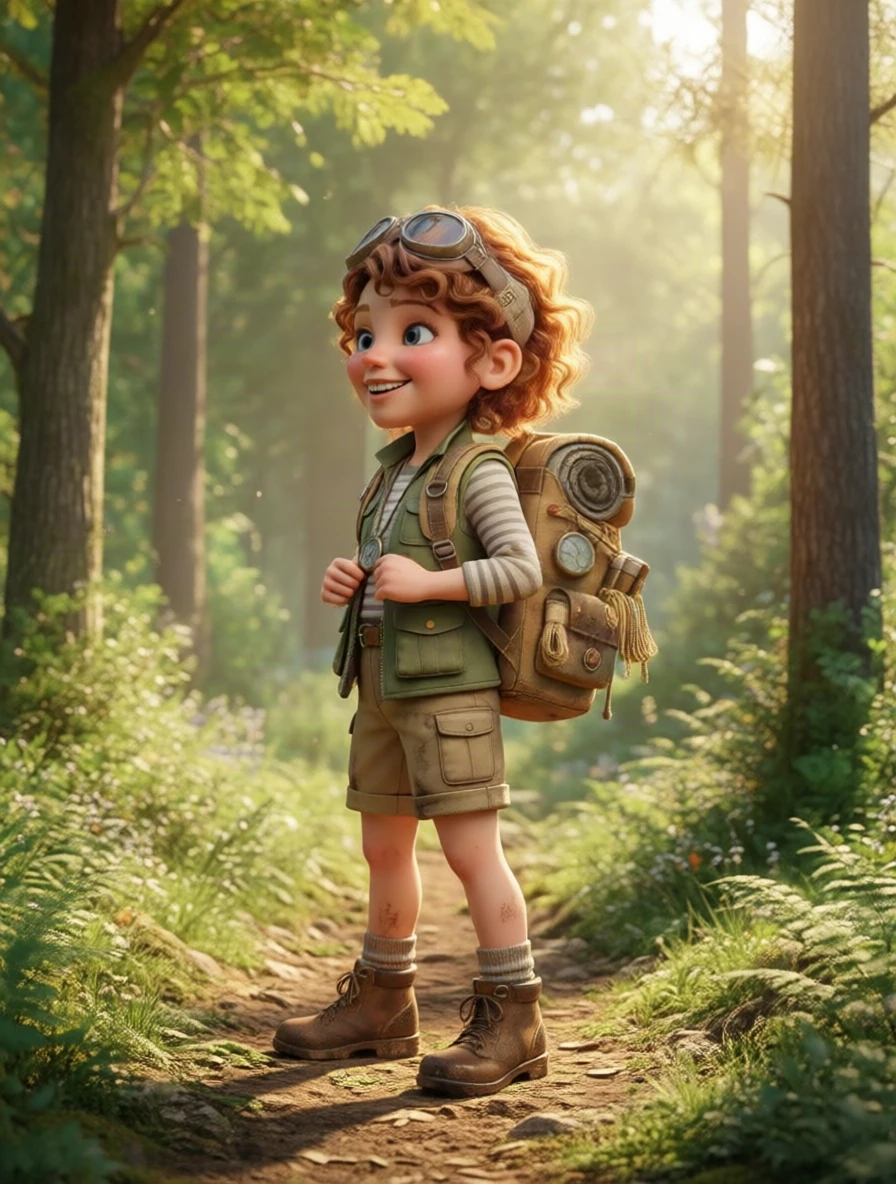
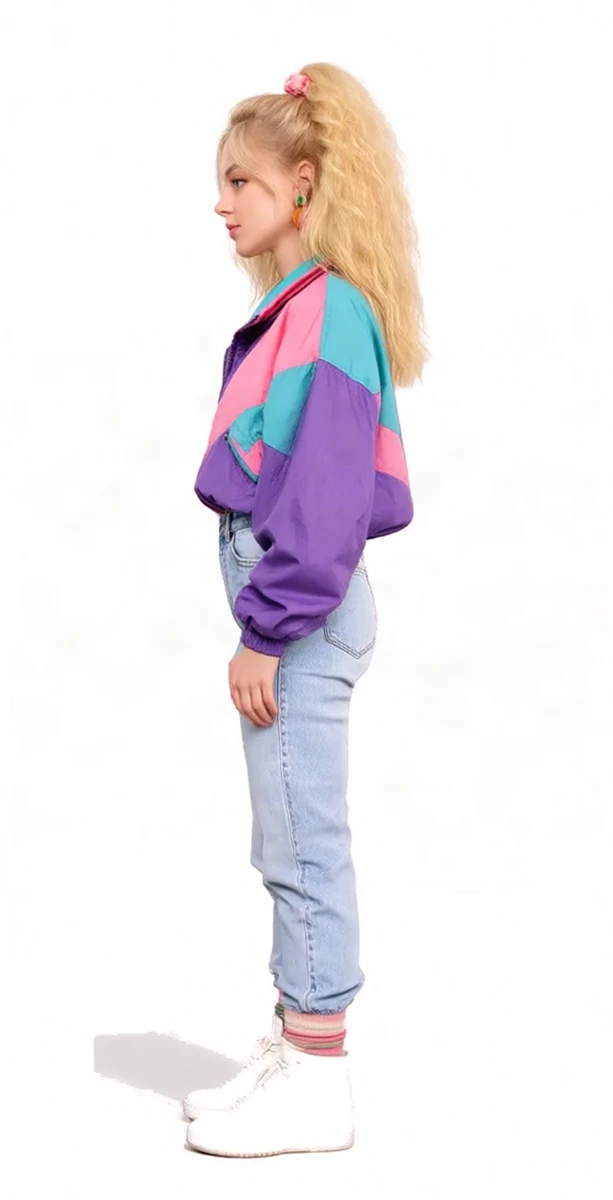
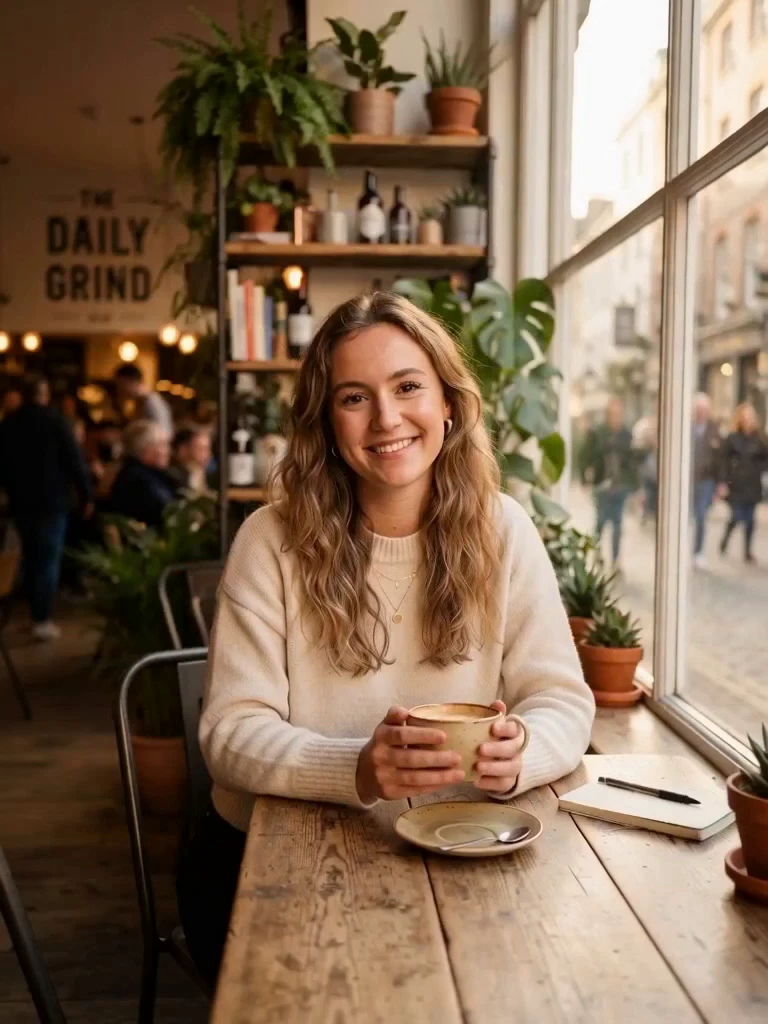
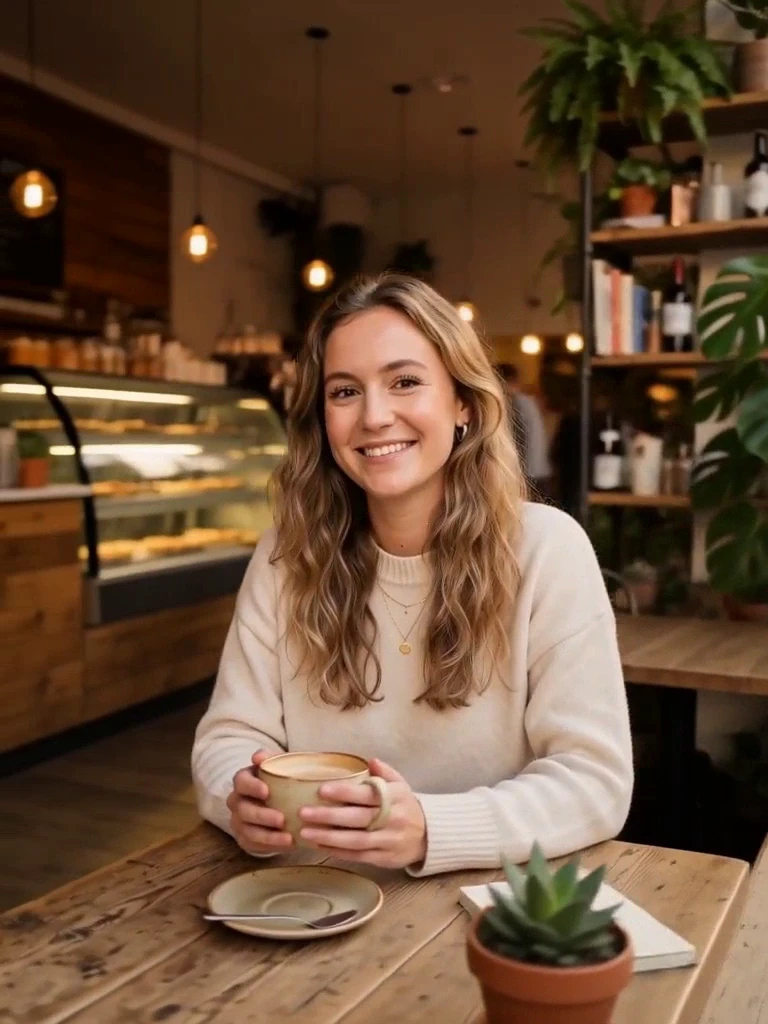
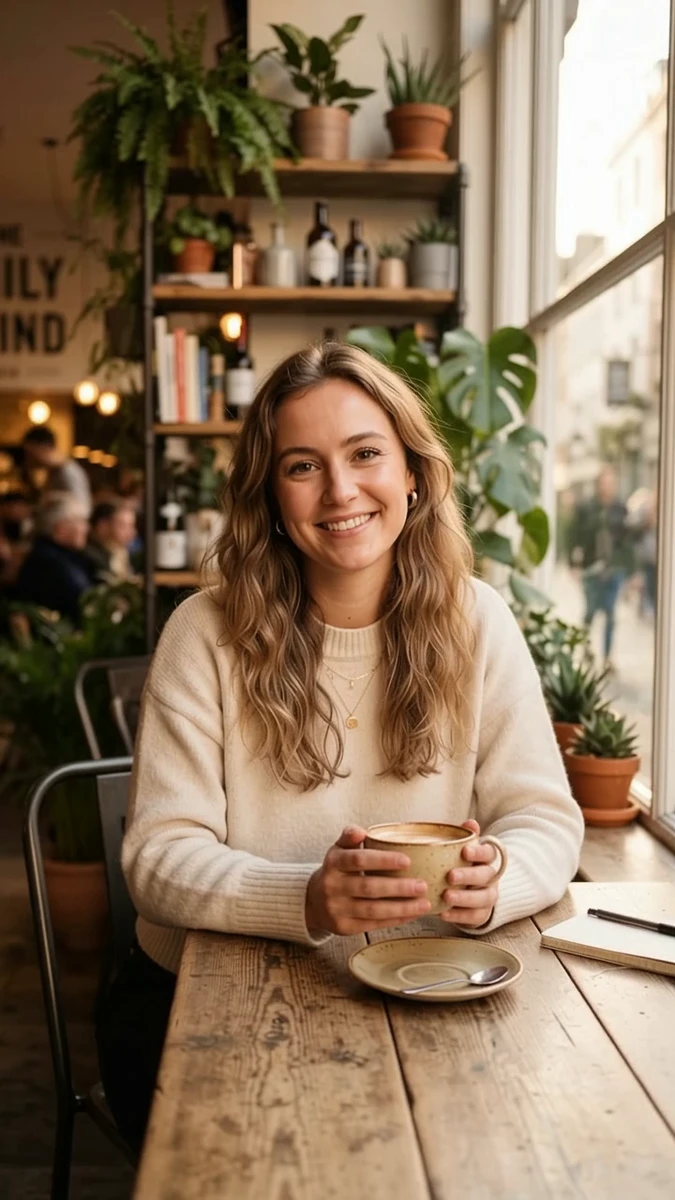
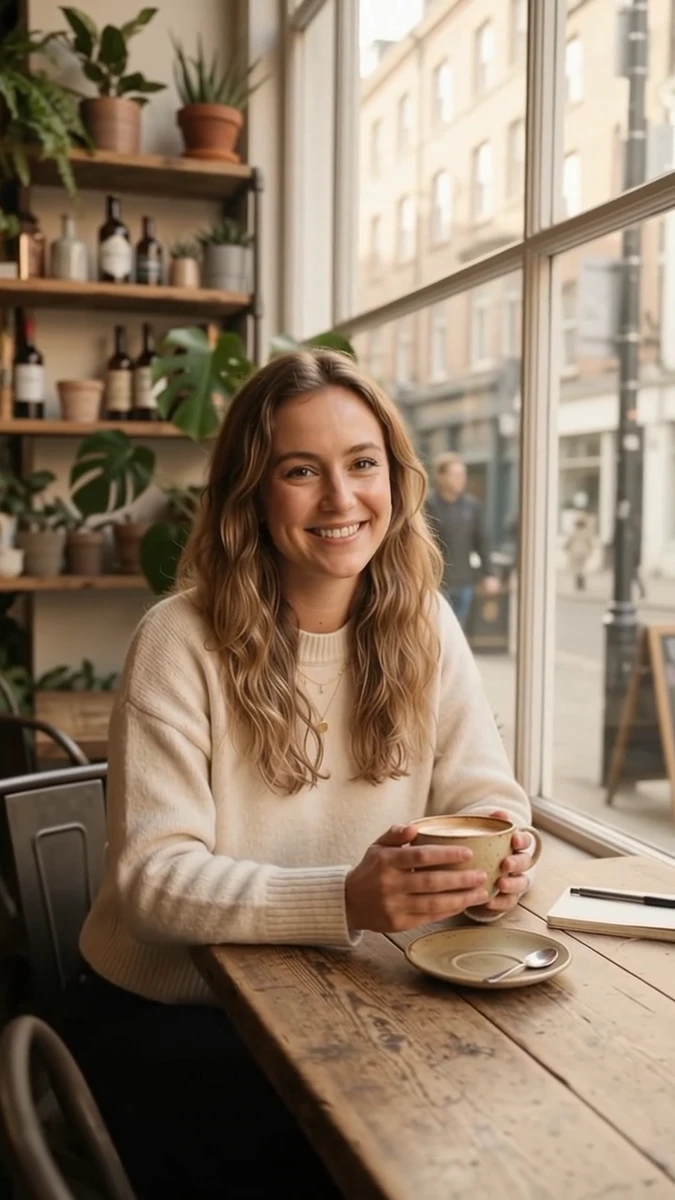
Seven source images: two are Sky Studio's own character assets (a retro girl, full body on white; a knight, half body) and five were generated with Nano Banana 2 Lite for the test: a woman in a red raincoat on a rainy street, a 3D cartoon explorer in a forest, a woman at a cafe window, a man at an office desk, two friends at a dinner table. Three of them are people sitting at a table indoors on purpose, because a closed room is the hardest case: once the camera moves to the other side, the model has to invent the half of the room it never saw.
Three approaches:
- Prompting an image model: Nano Banana 2 Lite (Google), Seedream 5.0 Flash (ByteDance), GPT Image 2 (OpenAI), one reference image plus a sentence, 1K. First a plain wording, then a wording that spells out the geometry.
- Qwen Angles: the model behind Sky Studio's Camera Angle tool, Alibaba's Qwen-Image-Edit plus an open-source camera-angle LoRA (a small fine-tuning module added to a large model). We tested right 90°, directly behind, high and low angles and a close-up.
- A video orbit, then a frame: the cafe image as the first frame, an 8-second "camera circles the person" clip from MiniMax H3 (Hailuo 3) and from Gemini Omni 1.1 Flash (Google), then frames extracted from each.
| Approach | Does the camera really move? | Best for | Watch out for | Time per result |
|---|---|---|---|---|
| Prompting an image model (Nano Banana 2 Lite, Seedream 5.0 Flash, GPT Image 2) | Mostly the person turns and the background stays; with the geometry spelled out, Seedream did move the camera on the cafe image | White backgrounds, symmetrical street scenes, or when you only need a back view and the background does not matter | Rooms with a direction give it away; GPT Image 2 is slow and a few runs passed five minutes | Lite ten-odd seconds, Flash about half a minute, GPT one to two minutes |
| Qwen Angles (the model in Sky Studio's Camera Angle tool) | Yes, the whole scene turns with it | Side, over-the-shoulder and back views, high and low angles, moving closer or wider; closed rooms too | Fixed stops only; 180° uses a dedicated instruction; 135° takes two steps; the odd blurry edge, one regeneration usually fixes it; the close-up sometimes needs a retry | Half a minute to a bit over a minute |
| A video orbit, then a frame (MiniMax H3, Gemini Omni 1.1 Flash) | Yes, and continuously through the whole arc | Many angles at once, or when you want a moving shot anyway | Frames are video resolution, softer than a generated image; the person may move; H3 changed the half of the room it could not see | Half a minute to a minute for 8 seconds of video |
Approach one: prompt an image model directly
The easiest route is to use the original as a reference image and add a sentence. Our first wording was very direct:
> Rotate the camera 180 degrees to view the subject from directly behind. Same person, same hair, clothing, pose, lighting and background; the back of the head and body now face the camera.
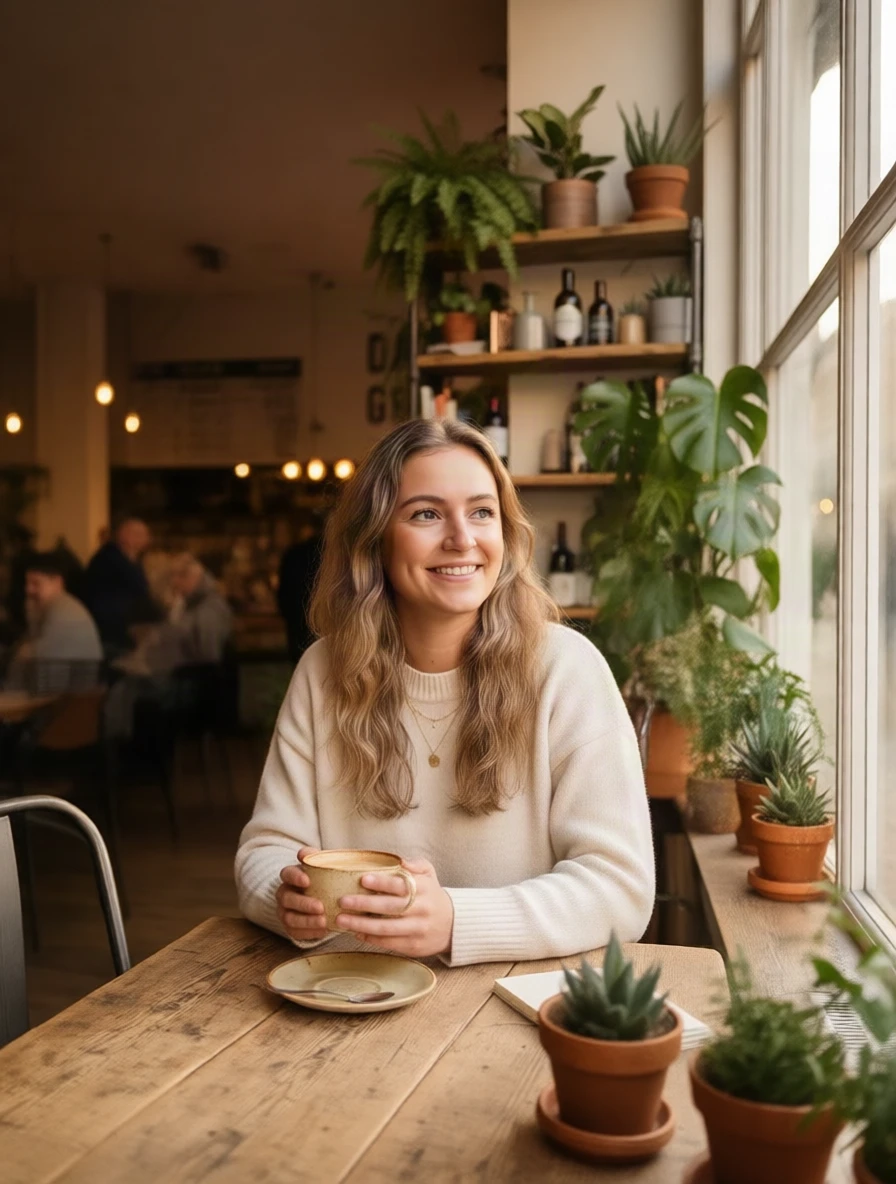
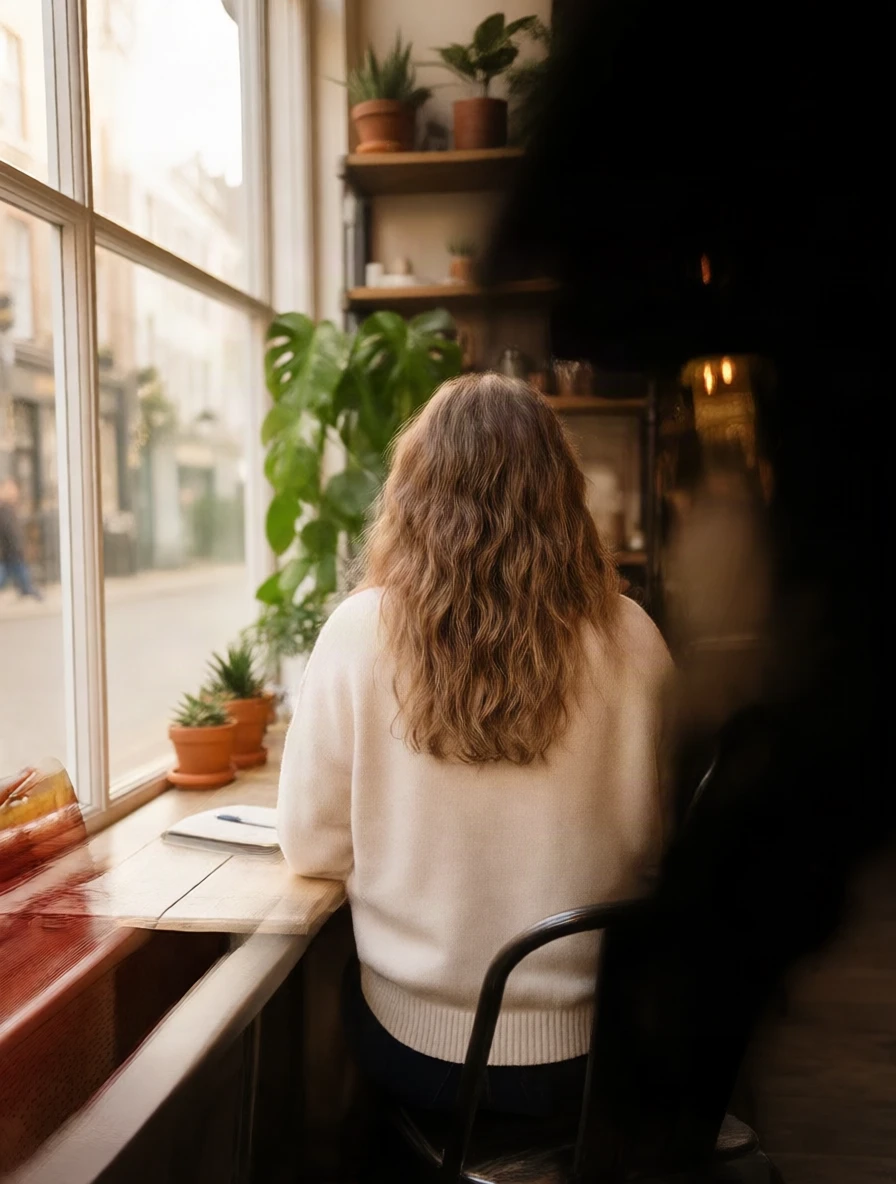
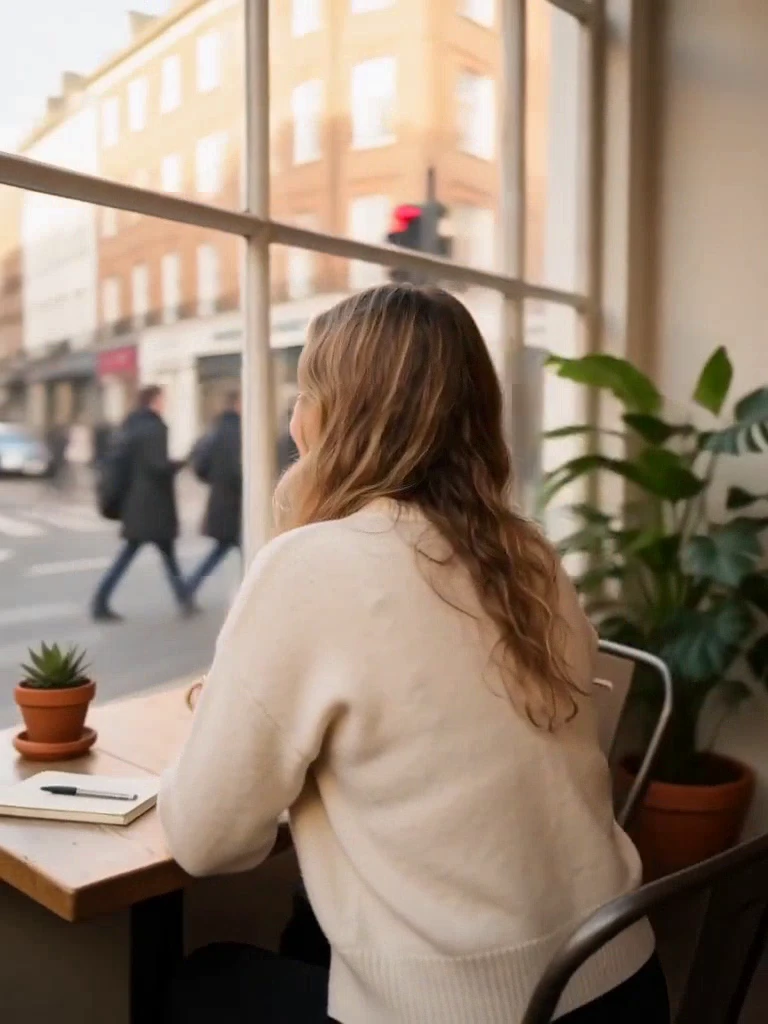
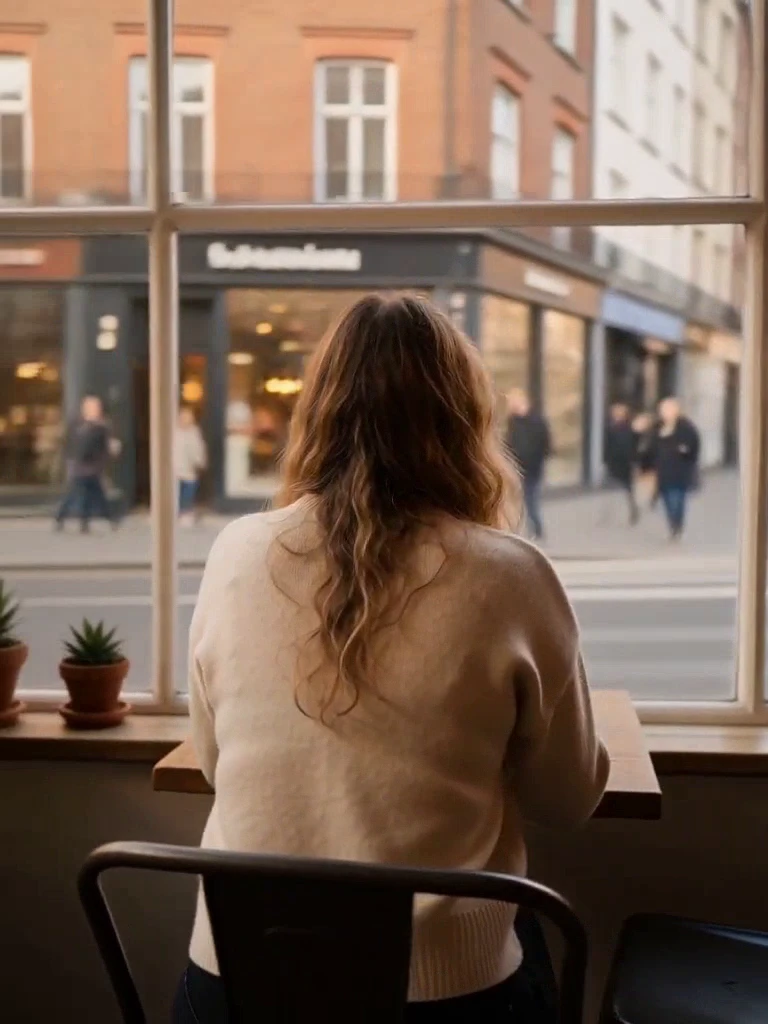
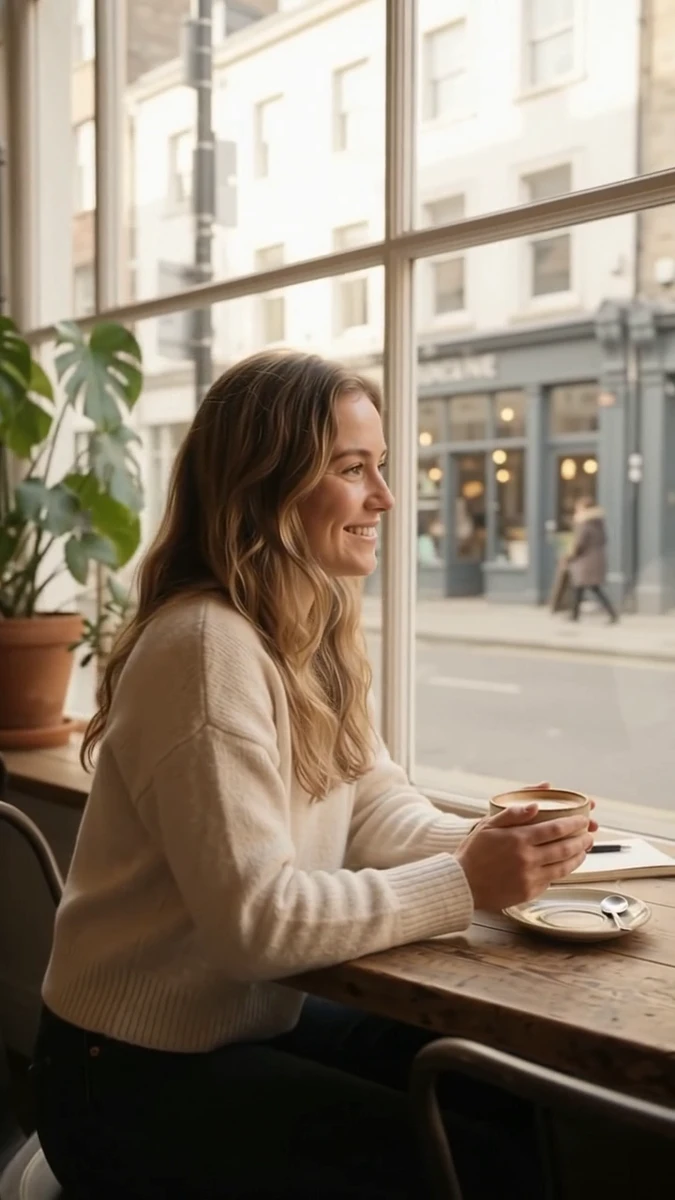
On the cafe image all three models answered the same way: the woman has her back to us, but the "THE DAILY GRIND" shelf (the cafe sign) is still behind her, and GPT Image 2 even mirrored the lettering. The sentence says "same background", and the models obeyed it: the person turned, the camera did not move.
For the second round we spelled out the geometry: this is a camera move, not a pose change; the subject stays where they are; the background must become the half of the scene that was behind the original camera, and the old background should leave the frame. Nano Banana 2 Lite still turned the person; Seedream 5.0 Flash really moved the camera this time, the woman facing the window with the street outside. So the wording helps, but it is unreliable and varies a lot between models.
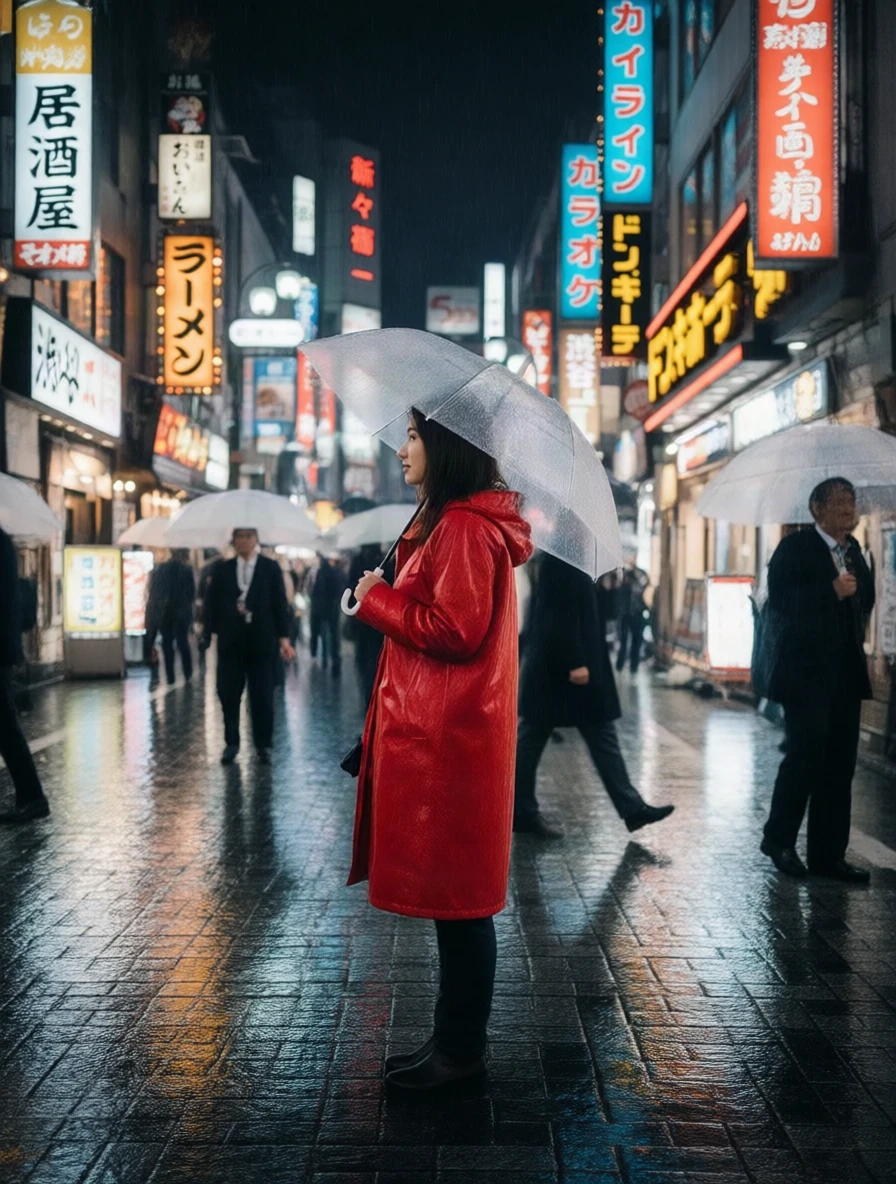
When is this approach enough? When the background has no direction. The retro girl on white: GPT Image 2's back view is flawless. The 3D explorer in the forest: Nano Banana 2 Lite's back view looks natural, because a forest looks like a forest from every side. The rainy street is similar: it runs in both directions, so a turned person and a moved camera look much the same.
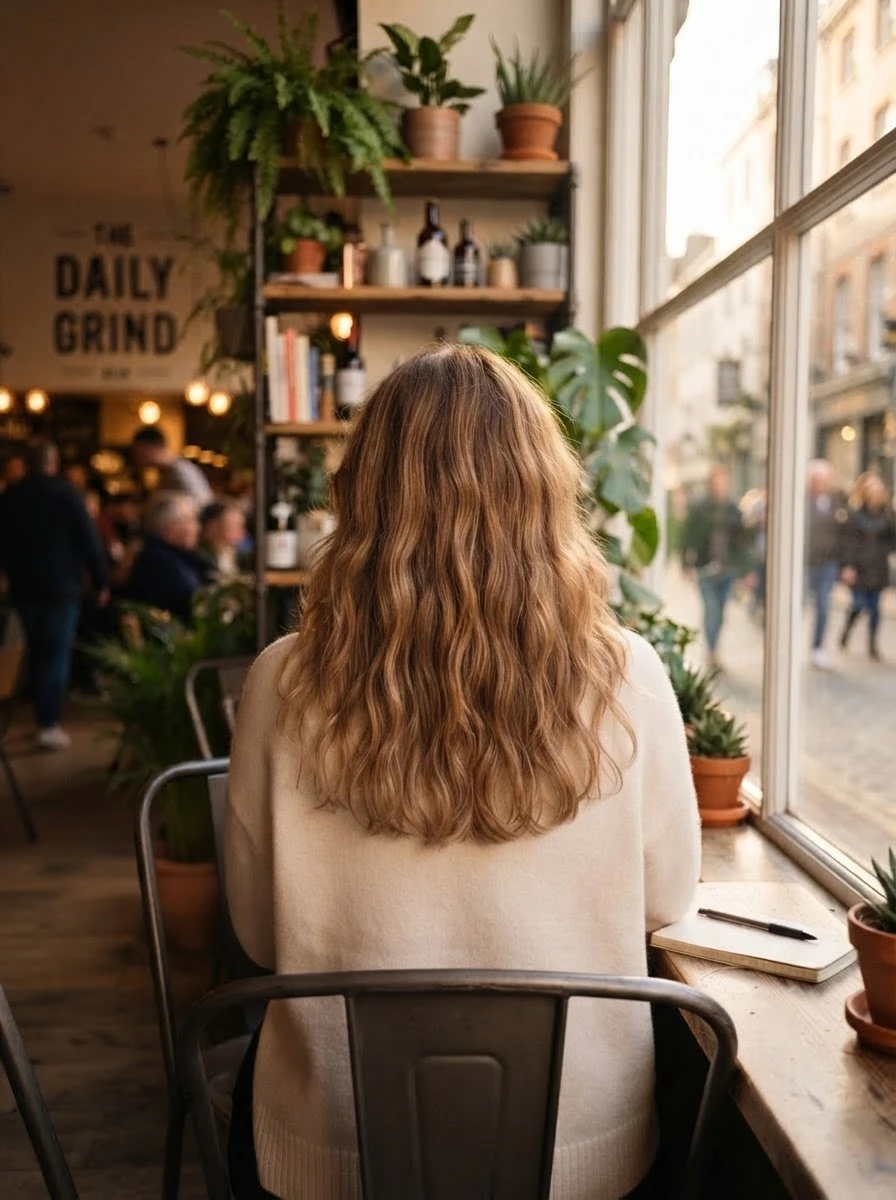
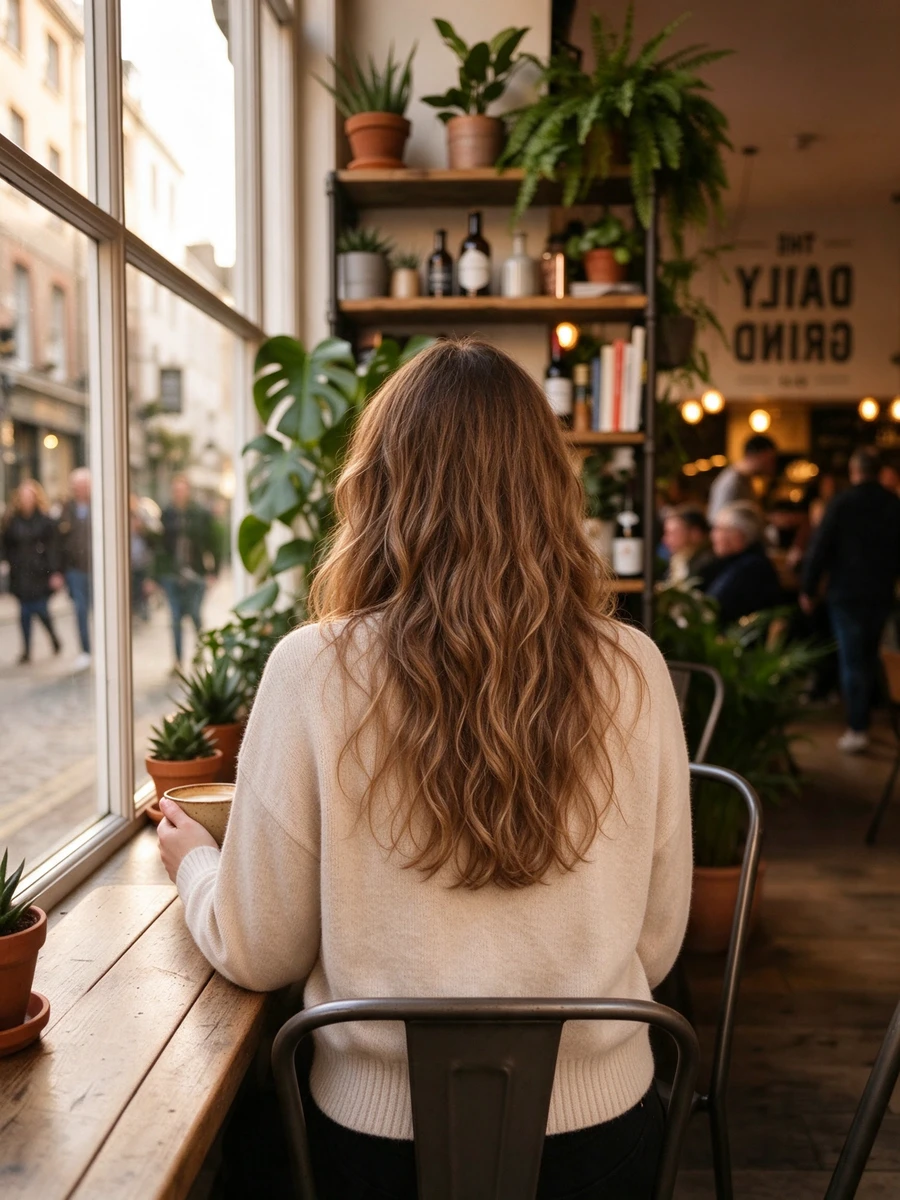
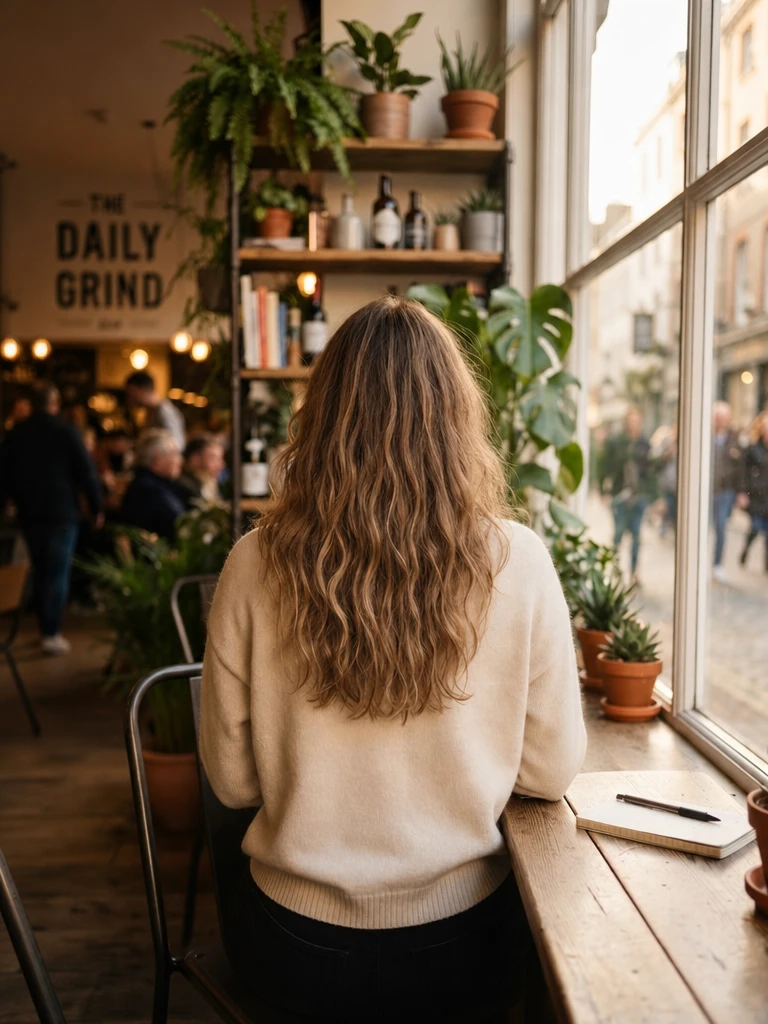
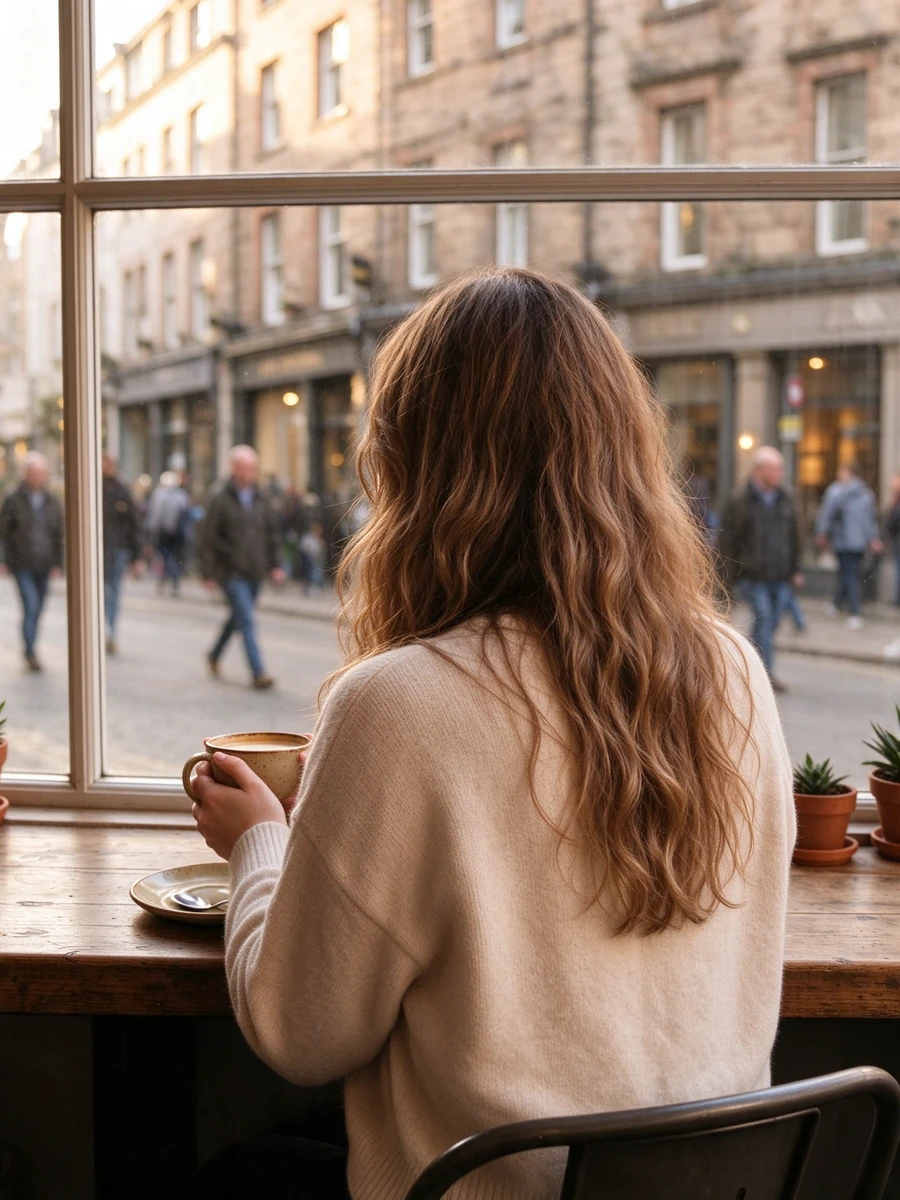
Approach two: Qwen Angles, a LoRA trained for camera moves
The default model in Sky Studio's Camera Angle tool is called Qwen Angles: the base is Alibaba's Qwen-Image-Edit, with an open-source camera-angle LoRA on top (a low-rank adapter, a small fine-tuning module added to a large model). This LoRA has learned only a handful of fixed camera instructions: rotate the camera 45° or 90° left or right, switch to a bird's-eye or worm's-eye view, move forward, go to a close-up, switch to a wide-angle lens. What it learned is not "the person turns" but "what the whole scene looks like after the camera changes position", so what comes out is a genuinely new camera position.
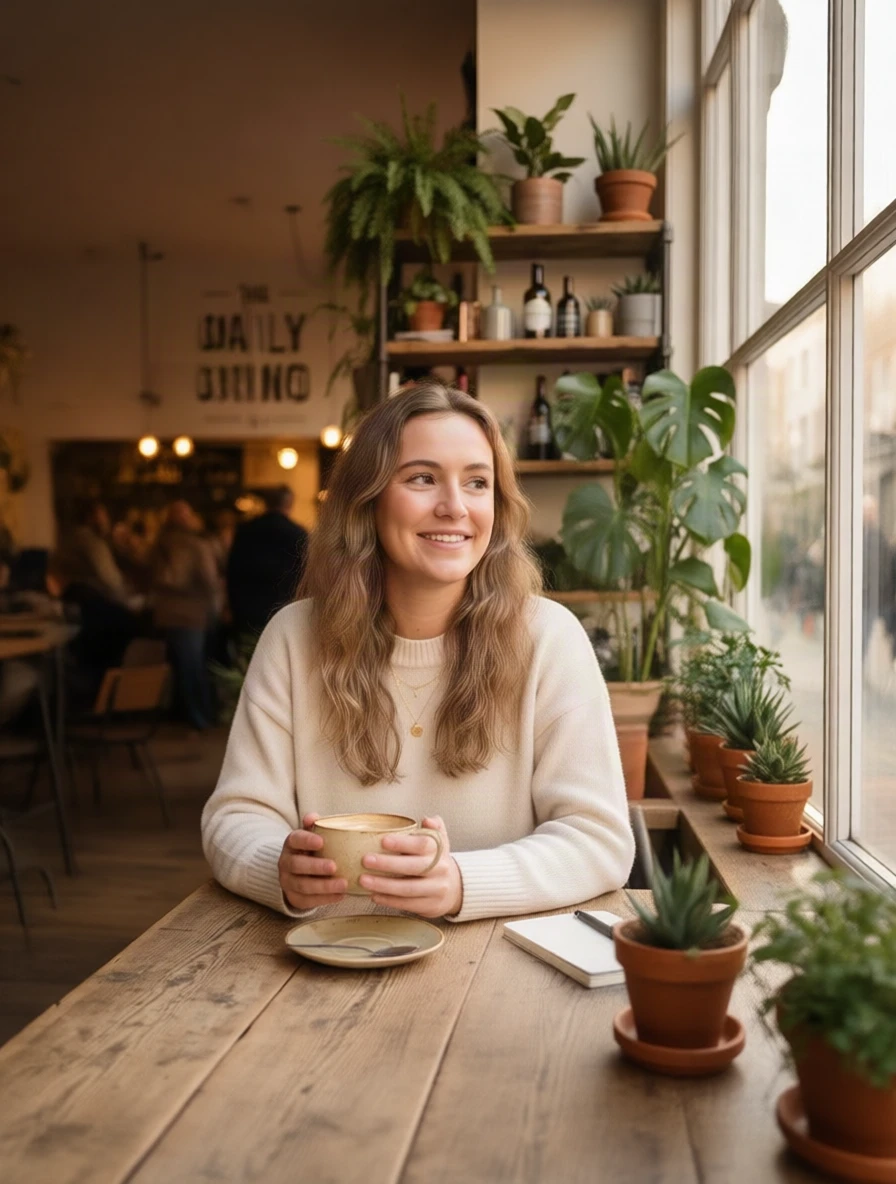
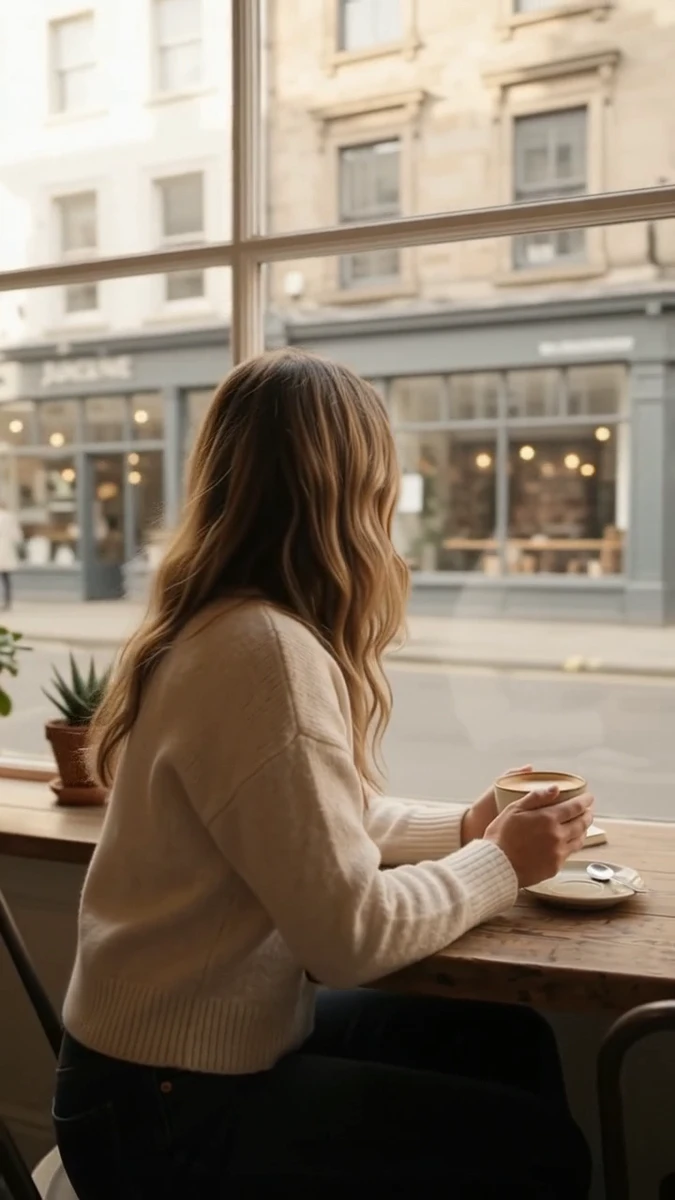
The tool translates the position you drag to on the sphere into those instructions. Drag to 90° and the camera is at the subject's side; drag to 180° and it uses a dedicated instruction, "move the camera directly behind the subject". We tried simply writing "rotate 180°": the LoRA never learned that, and the person stayed facing the camera (the third image in the cafe set below). For angles the LoRA never learned, such as 135°, the tool works in two steps: first directly behind, then back by 45°, and the panel labels it "two steps".
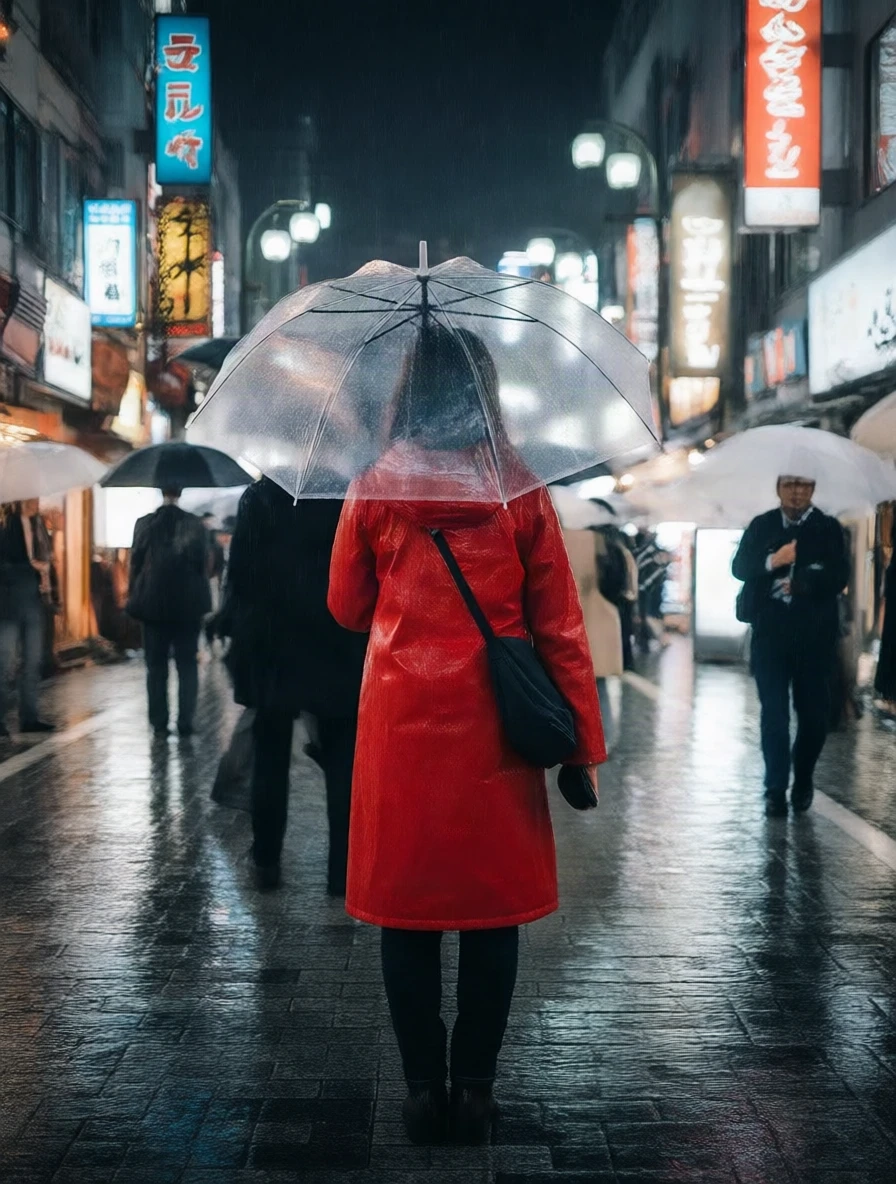
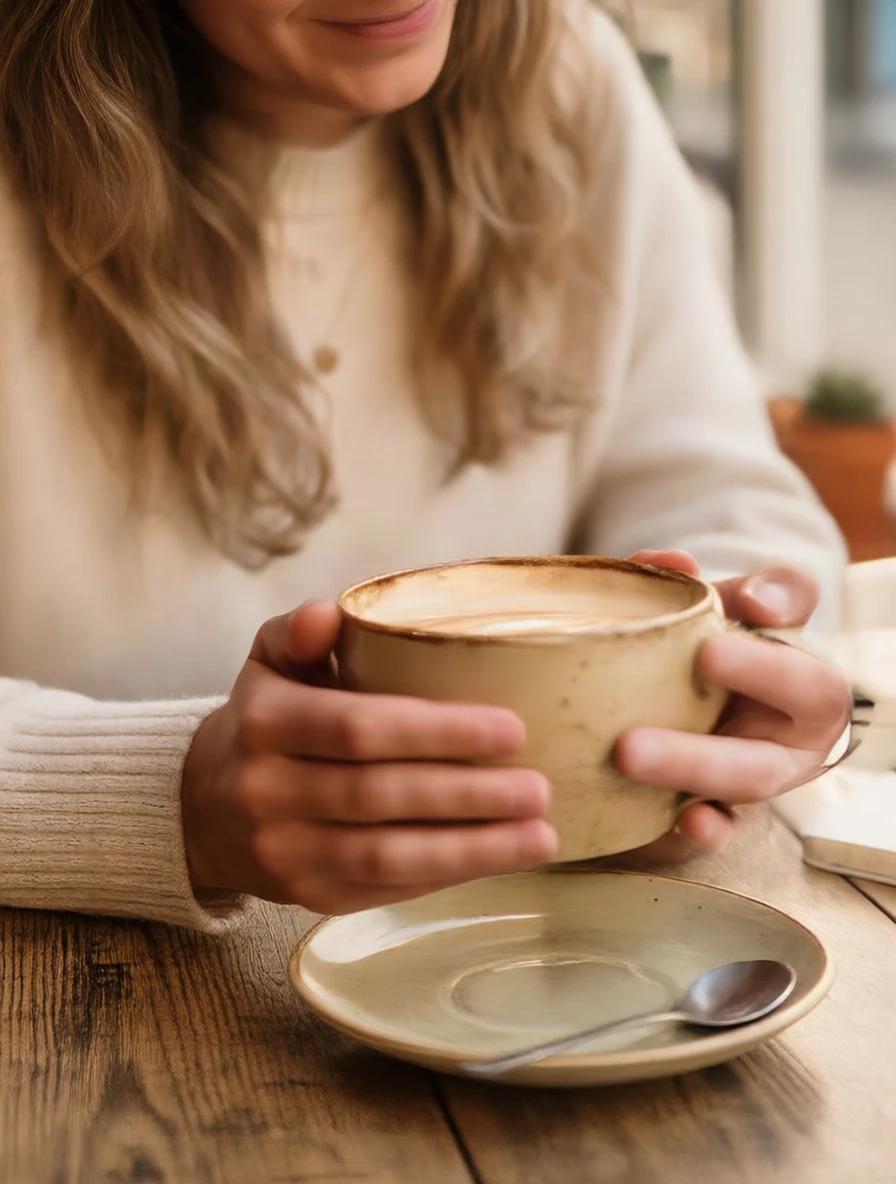
Results: right 90° worked on all seven images, including the three closed rooms. In the cafe the window is now in front of the woman; at the dinner table the two friends sit one behind the other with the kitchen deep in the frame. Directly behind worked on both the cafe and the rainy street, keeping the clothes, the umbrella and the bag. The weak spot is an occasional blurry edge, as on the right of the cafe back view; regenerating once usually fixes it. High and low angles worked too: the cafe at high 45° shows the floor, the table top and the row of small plants on the sill; the rainy street at low 45° turns the umbrella into the roof of the frame and makes the signs tower upwards. For distance we tried the close-up: the lens moved in on the hands and the coffee cup, latte art and fingers sharp, only the lower half of the face left in frame, which is the framing the LoRA's "turn the camera to a close-up" instruction gives. The first close-up timed out mid-generation; a retry succeeded.
Approach three: generate an orbiting video, then extract a frame
Video models understand camera moves natively, so there is a third route: use the original as the first frame, have the camera circle the person, and pull the frame you want out of the clip. We gave the cafe image to MiniMax H3 (Hailuo 3, 768p) and Gemini Omni 1.1 Flash (Google, 720p), 8 seconds each, with a prompt that describes only how the camera moves and says the person does not.
Both cameras really moved, with different trade-offs:
- MiniMax H3 completed the whole half circle and ends on a clean back view, the woman facing the window. But as the camera swung into the half of the room it could not see, the model invented a pastry counter and a new shelf, and the cafe stopped looking like the same place.
- Gemini Omni 1.1 Flash kept the room: shelves, window and the street outside stay exactly as they were. In 8 seconds it only got to about a three-quarter back view, not directly behind, and the picture brightens as it turns.
Extracted frames are video resolution, here 768×1024 and 720×1280, and frames taken during motion are a little soft. It suits two situations: you want a moving shot anyway and grab a few frames on the side, or you want many angles at once, since one clip covers everything from the front to the back. If you need a single sharp side or back view, the Camera Angle tool is the more direct route.
A camera move only, no cut. The woman stays completely still, holding her coffee cup with both hands and keeping exactly the same pose and expression. The camera slowly orbits around her in one smooth half circle at the same height: it starts at the front, travels past her left side, and ends directly behind her, so at the end we see her back, the back of her head, and the window and the street outside in front of her. The cafe, the table, the plants and the lighting stay the same. Steady, continuous, realistic.
How to do it in Sky Studio
With the Camera Angle tool (images)
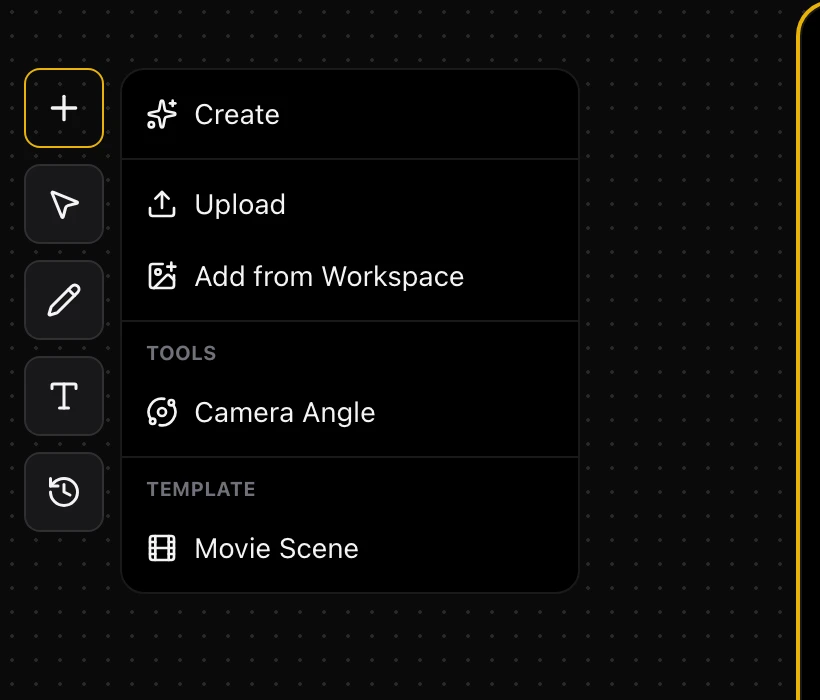
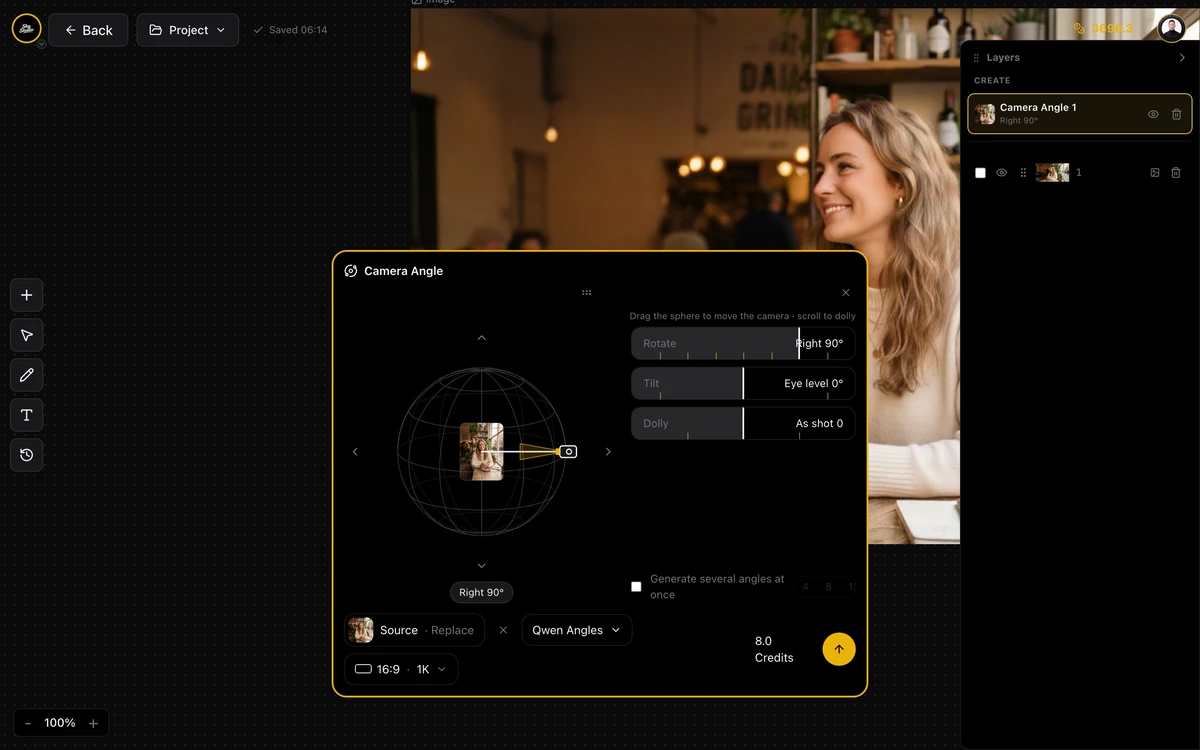
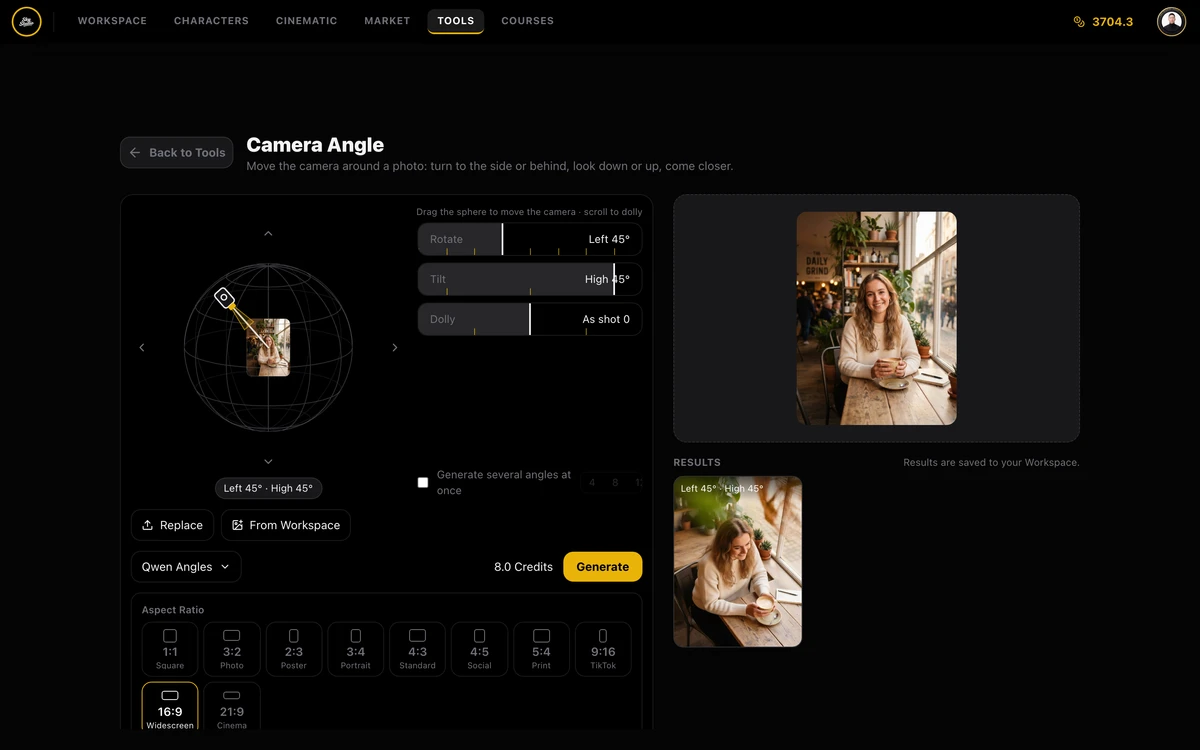
Step 1 Open the Cinematic Canvas, click the “+” button on the left and choose “Camera Angle” under “Tools”. Or open the Camera Angle tool page directly; it opens without an account.
Step 2 Click “Add source image” in the middle of the sphere and pick one image from Upload, Workspace, Canvas layer or Character. One image at a time.
Step 3 Drag the camera on the sphere, or use the Rotate, Tilt and Dolly sliders on the right. The readout under the sphere spells out the move, for example “Right 90°” or “Behind 180° · High 45°”.
Step 4 The model defaults to Qwen Angles; you can also switch to another image model that takes a reference image to see the “turned person” version. Pick the aspect ratio yourself, 16:9 by default, at 1K or 2K.
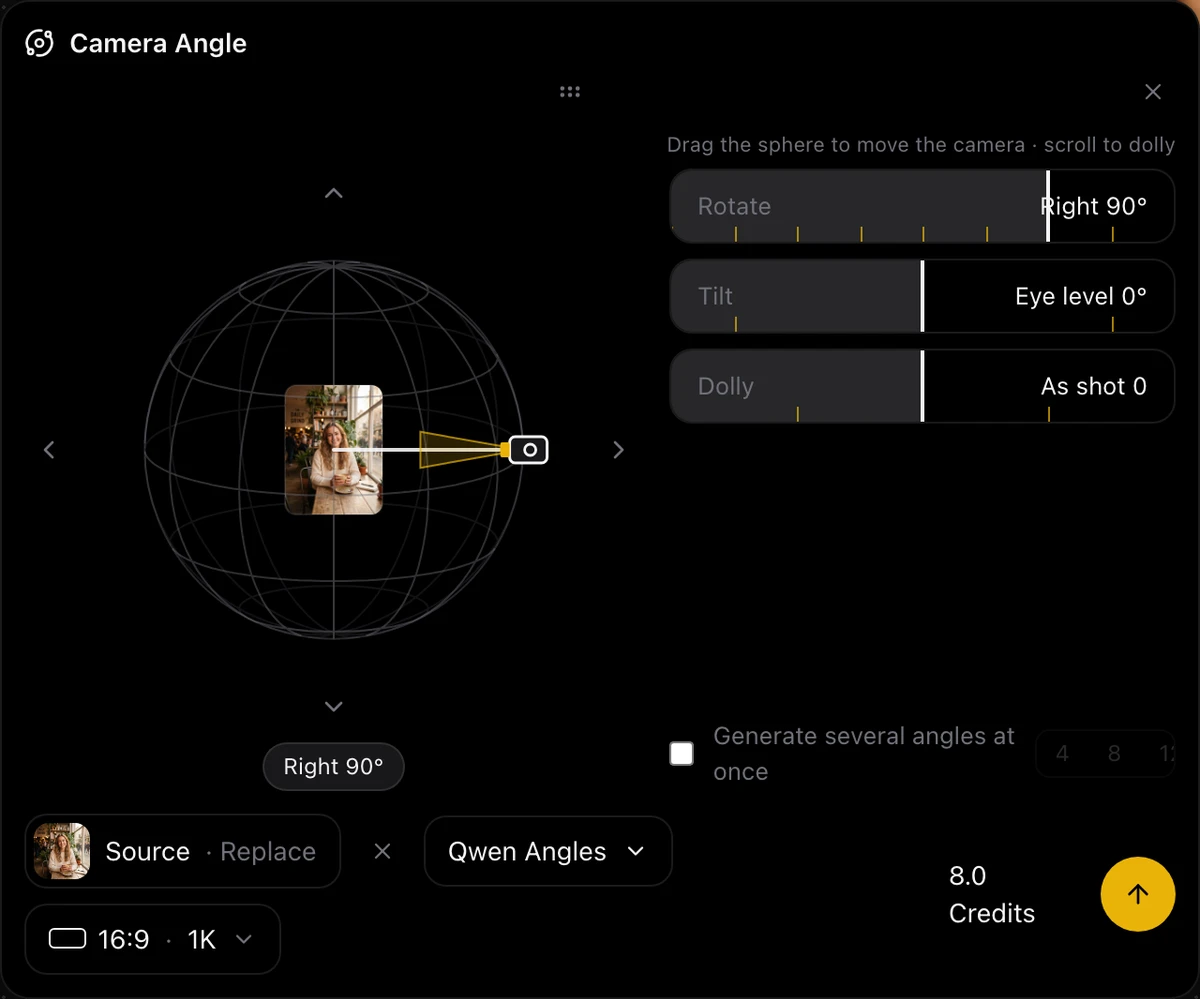
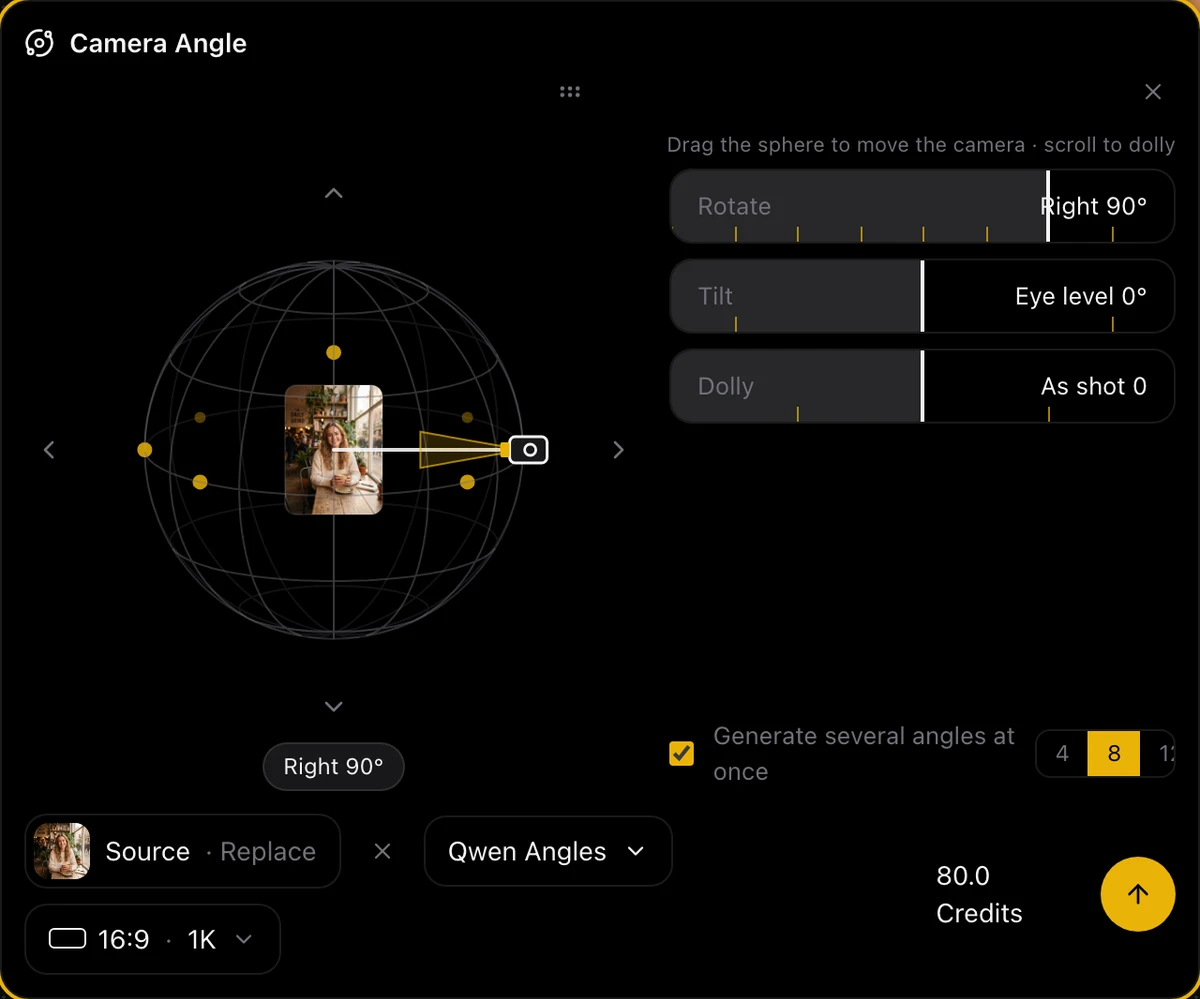
Step 5 Click generate. To get a whole ring of angles at once, switch on “Generate several angles at once” and choose 4, 8 or 12 preset positions; the sphere marks them.
Step 6 The result is a new layer, and the Layers panel records which source it came from and by how much it turned. Set a result as the source and you can keep turning.
With a video orbit and a frame
- On the Cinematic Canvas click “+”, choose video under “Create”, pick the “Frames” method and put the image in the first frame.
- Choose MiniMax H3 or Gemini Omni 1.1 Flash, about 8 seconds, and write a prompt that describes only the camera move and keeps the person still; the one above works as is.
- When the clip is ready, select the video layer and click “Extract Frame” in the floating toolbar; the current frame becomes a new image layer. Scrub to another moment and extract again for a whole ring of angles.
Both routes save their results to your Workspace.
Which one to use when
- Images without a background, such as white-background shots or product photos: prompting an image model is enough, it is fast, and the back view often has more complete detail.
- A side, over-the-shoulder or back view that keeps the scene: use the Camera Angle tool. The background turns with the camera, which an image model will not do from a prompt.
- High angle, low angle, closer or wider: also the Camera Angle tool; those are its stops.
- A whole ring of angles, or a moving shot anyway: generate an orbiting video, then extract frames. Pick Gemini Omni 1.1 Flash to keep the room unchanged, MiniMax H3 to complete the half circle, then choose among the middle frames.
- Storyboards, character sheets, several camera positions of one scene: fix the positions with the Camera Angle tool first, then use those images as the first and last frames of a video, and the shots will cut together.
Limits and a few tips
- Qwen Angles has fixed stops only: rotation in 45° steps, tilt only ±45°, three distance steps. The sphere lets you drag in 15° steps; with Qwen Angles the position snaps to the nearest stop, with an image model your exact angle is written into the prompt.
- A back view hides the face. For a "view from behind that still shows the face", use the 135° over-the-shoulder position, which generates in two steps.
- The cleaner the source, the better: a clear subject, one person, not too small. Whatever was hidden in the source, the model can only guess.
- Blurry edges and extra objects usually go away with one regeneration; each run is independent.
- A frame from a video is video resolution; if you plan to enlarge it, upscale it in the Workspace first.
- We only tested people and one 3D character. The tool itself does not restrict the subject, so pets, products and buildings are worth a try; the test is the same: does the background turn with the camera?
Frequently asked questions
Can AI turn a frontal photo into a back view?
Yes, but decide which result you want. Prompting an image model mostly turns the person while the background stays put. With Qwen Angles in Sky Studio's Camera Angle tool the camera really goes behind the subject and the frame shows the half of the scene in front of them. In our test both the cafe and the rainy-street image went directly behind successfully.
Why does the background stay the same when an image model "changes the angle"?
Because the model reads "change the angle" as "turn the person". It keeps the reference image's background and rotates the subject. With a background that has no direction (white, forest, a symmetrical street) nobody notices; in a room with a direction, say a window behind the person, the window still being in the frame after they turn gives it away. Spelling out the geometry sometimes helps, but models differ a lot.
What is Qwen Angles?
It is the default model of Sky Studio's Camera Angle tool: Alibaba's Qwen-Image-Edit plus an open-source camera-angle LoRA (a fine-tuning module). The LoRA was trained on instructions such as rotate the camera 45° or 90° left or right, bird's-eye and worm's-eye views, move closer or wider, and it learned what the whole scene looks like after the camera moves, so the result is a genuinely new camera position rather than a turned person.
How far can the Camera Angle tool turn? Can it do high and low angles?
Horizontally up to 180° either way, that is directly behind; tilt up to ±60°; five distance steps from wide to close-up. With Qwen Angles the position snaps to the stops it learned: rotation every 45°, tilt ±45°, three distance steps. With an image model the angle you drag to is written into the prompt.
Why does the panel say "two steps" at 135°?
The Qwen Angles LoRA never learned a 135° instruction. The tool generates twice: first it moves the camera directly behind, then it turns back by 45° from that image to reach the over-the-shoulder position. In our test, writing "rotate 180°" or "rotate 135°" directly did not work, which is why it is built this way.
Can I change the angle of the same image several times?
Yes. Every result is a new layer, and the Layers panel records its source and angle. Set a result as the source to keep turning; on the tool page, click "Use as source". Each turn is a fresh generation and details drift a little, so go from the original in one step whenever you can.
Will the person look different after the angle changes?
Large features such as clothes, hairstyle and what they carry mostly survive, like the red raincoat, clear umbrella and shoulder bag in the rainy-street image. The face is still visible in a side view and gone in a back view. Whatever the source hid (the back, the back of a backpack) is invented by the model and may not match reality.
Which aspect ratios and resolutions are supported?
In the Camera Angle tool you choose the aspect ratio yourself, 16:9 by default; resolutions are 1K and 2K. With another image model, the ratios and resolutions are that model's.
Are frames extracted from a video sharp enough?
A frame is video resolution: in this test 768×1024 for MiniMax H3 and 720×1280 for Gemini Omni 1.1 Flash, and frames taken during motion are a little soft. Fine for references and storyboards; for large prints or finished images, upscale in the Workspace first or generate that one angle with the Camera Angle tool.
Can I use the Camera Angle tool without signing in?
The tool page opens without an account: you can upload an image, drag the camera and read the settings, but generating requires signing in. Results are saved to your Workspace.