
Guide
How to Make a Bullet Time AI Video: Two Reference Images and One Prompt, Tested on MiniMax H3
To get a bullet time AI video where the person stays recognizable, give the video model two reference images with separate jobs: a scene image for the style and lighting, and a close-up of the character for the face. Then spell out the frozen moment in the prompt: bullet time, an orbit shot, objects hanging in the air, and a body caught just before it hits the ground. That is how the clip of the running woman on Sky Studio's homepage was made: the close-up comes from Sky Studio's character system, the scene image from Nano Banana 2, and the video from MiniMax H3 (Hailuo 3) in multimodal mode at 16:9, 480p and 12 seconds. Below are the steps, prompts and settings.
How this video was made
The whole clip took two reference images and one prompt, in three steps:
- Character close-up: on the Characters page, one reference photo becomes a four-view sheet, and the system crops out a headshot.
- Scene image: on the Cinematic Canvas, with the close-up as a reference, Nano Banana 2 draws her running in New York early in the morning.
- Video: in the Workspace, open Video, pick Multimodal and MiniMax H3, add both images and generate with the prompt.
The clip on the homepage was made exactly this way.
| Step | Model | Where and how |
|---|---|---|
| Close-up | Seedream 5.0 Flash | Characters page: one reference photo + an outfit description |
| Scene image | Nano Banana 2 | Cinematic Canvas: 16:9, 1K |
| Video | MiniMax H3 | Workspace → Video → Multimodal: 16:9, 480p, 12 s |
Step 1: Make the character close-up with the character system
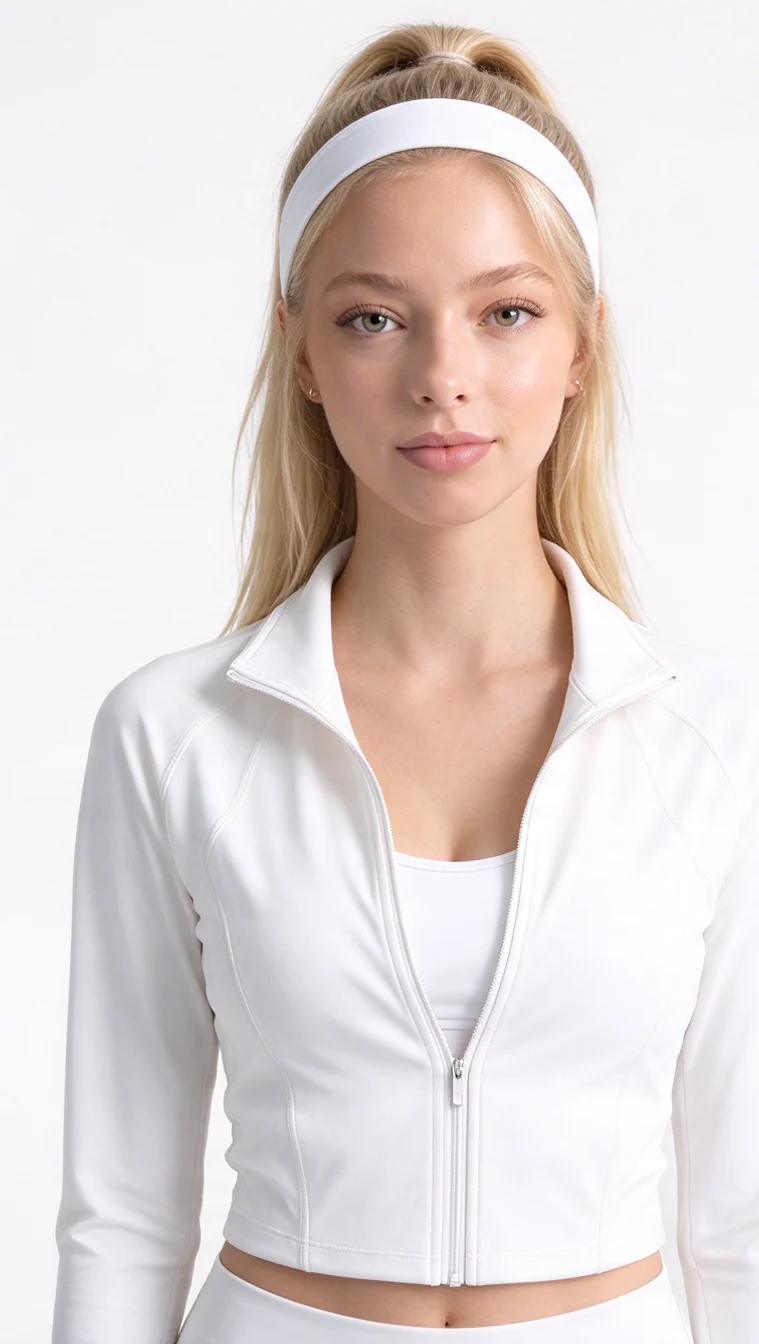
The video recognizes her by one clear front close-up. We made it with Sky Studio's character system:
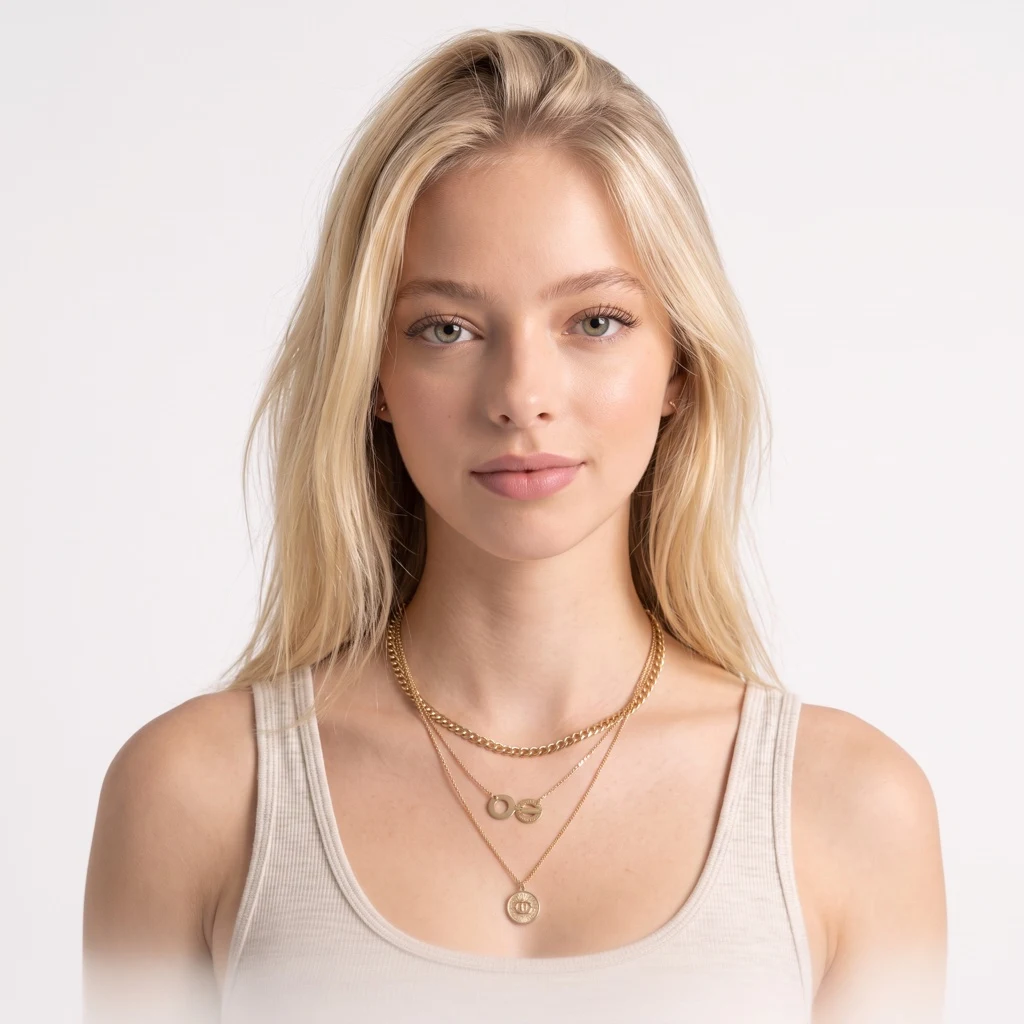
- Open the Characters page and upload a reference photo of the character (the one below) to keep her looks.
- Describe the new outfit in Character prompt and click Create From Reference.
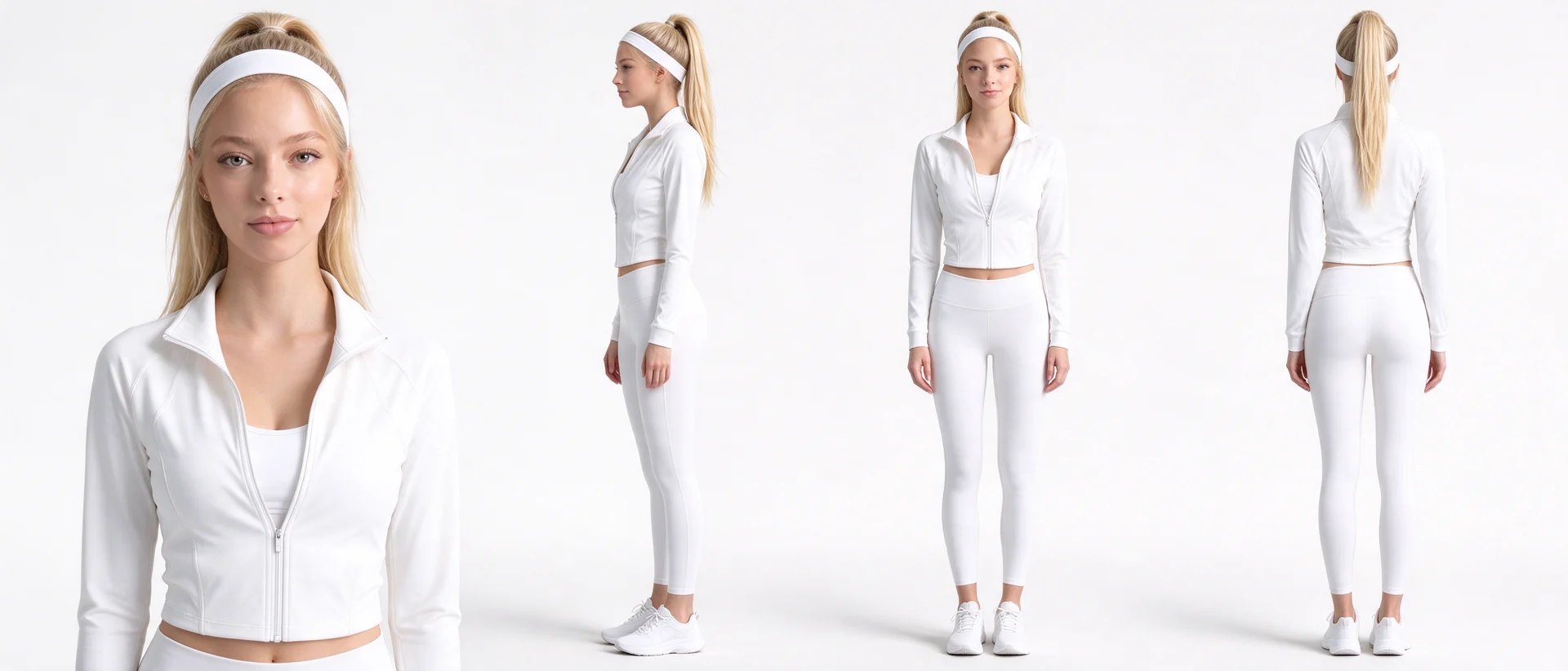
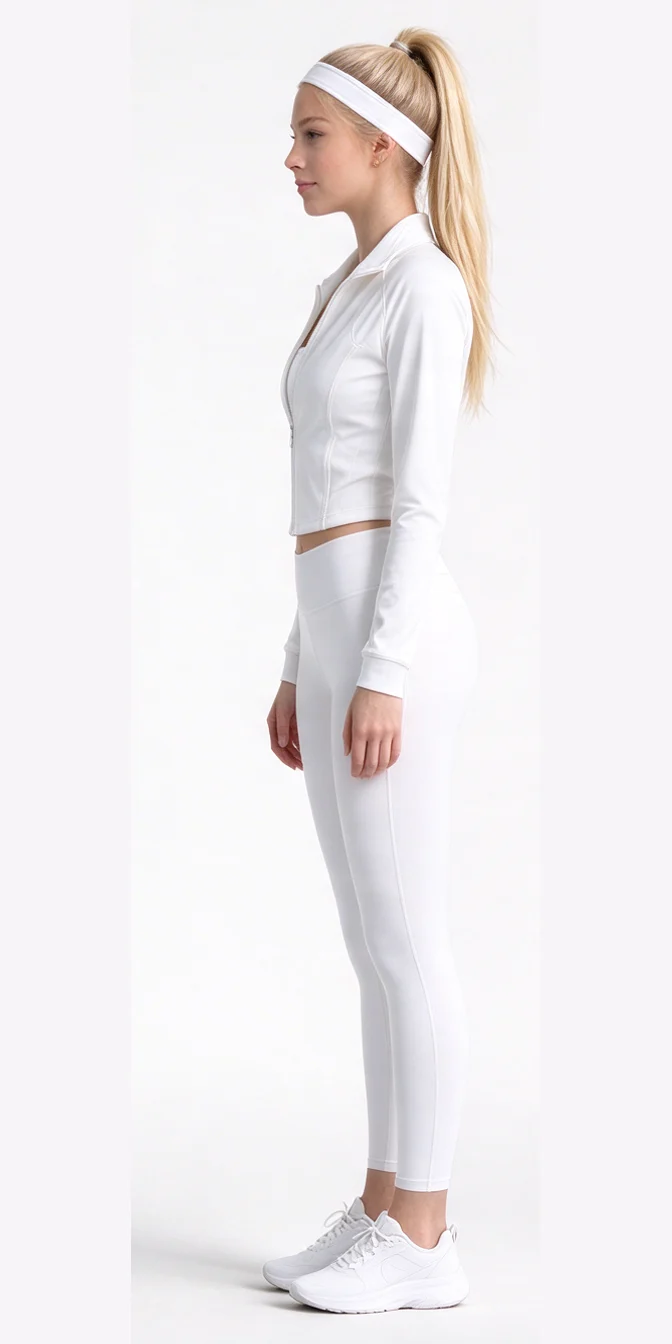
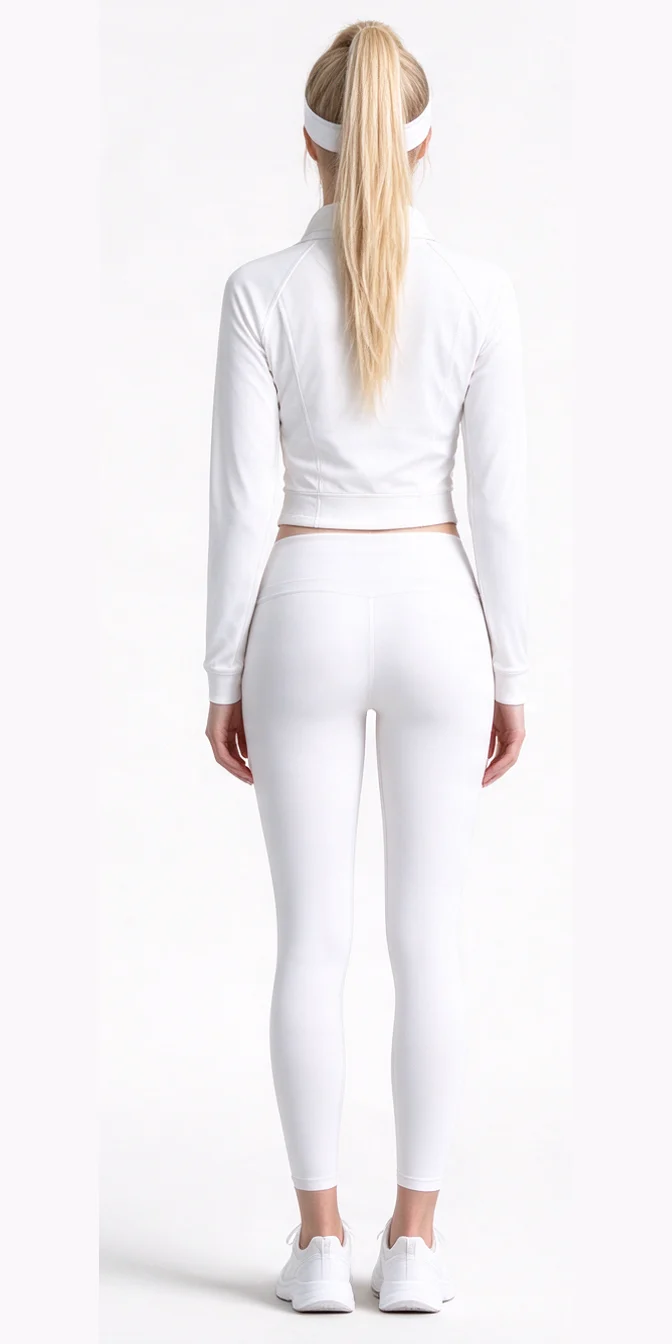
- The system generates a four-view sheet (front close-up, front full body, side and back) and crops it into four images: front, side, back and headshot.
The outfit can change while the person stays the same: in the reference she wears a beige tank top and gold necklaces; the new look is all-white athleisure with a headband and a high ponytail.
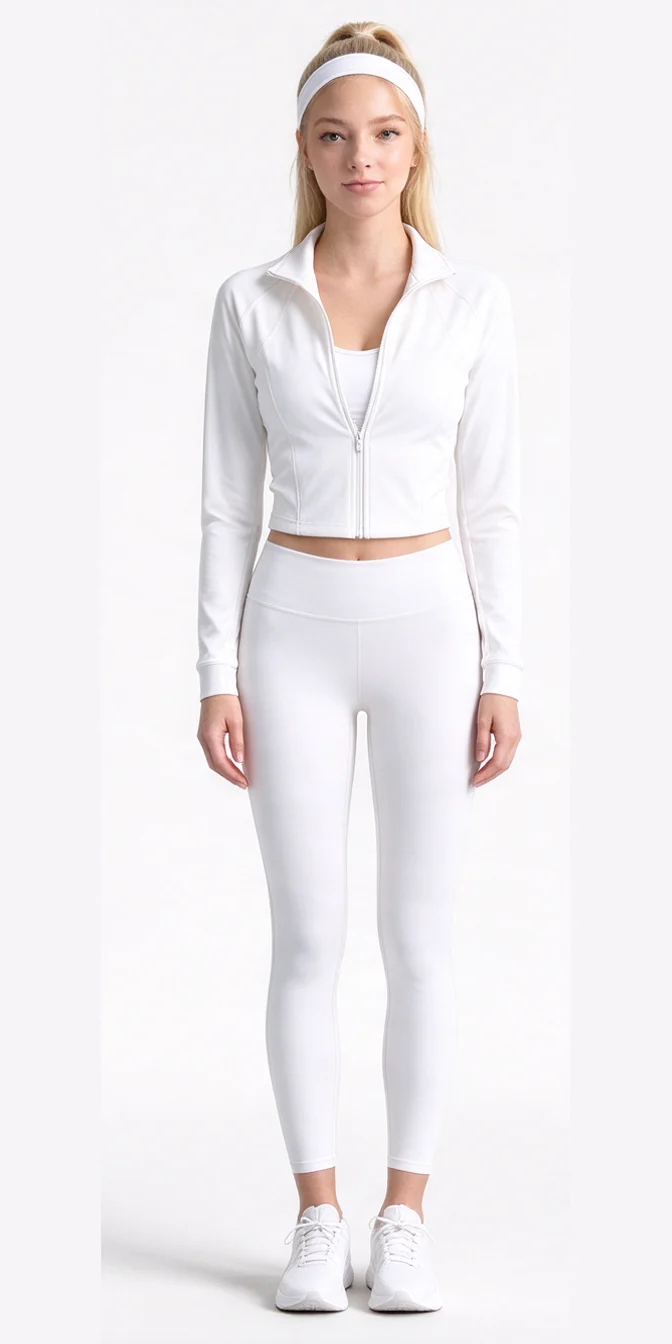
The same young woman in sleek all-white premium athleisure: a fitted white cropped zip-up training jacket, a white sports bra underneath, high-rise white leggings, clean white trainers, a slim white headband, and her blonde hair in a high ponytail. Minimal modern yoga-studio style, no logos or text on the clothes.
Step 2: Generate the scene image with Nano Banana 2
With the face settled, you still need a picture of where she is and how the light falls. On the Cinematic Canvas:
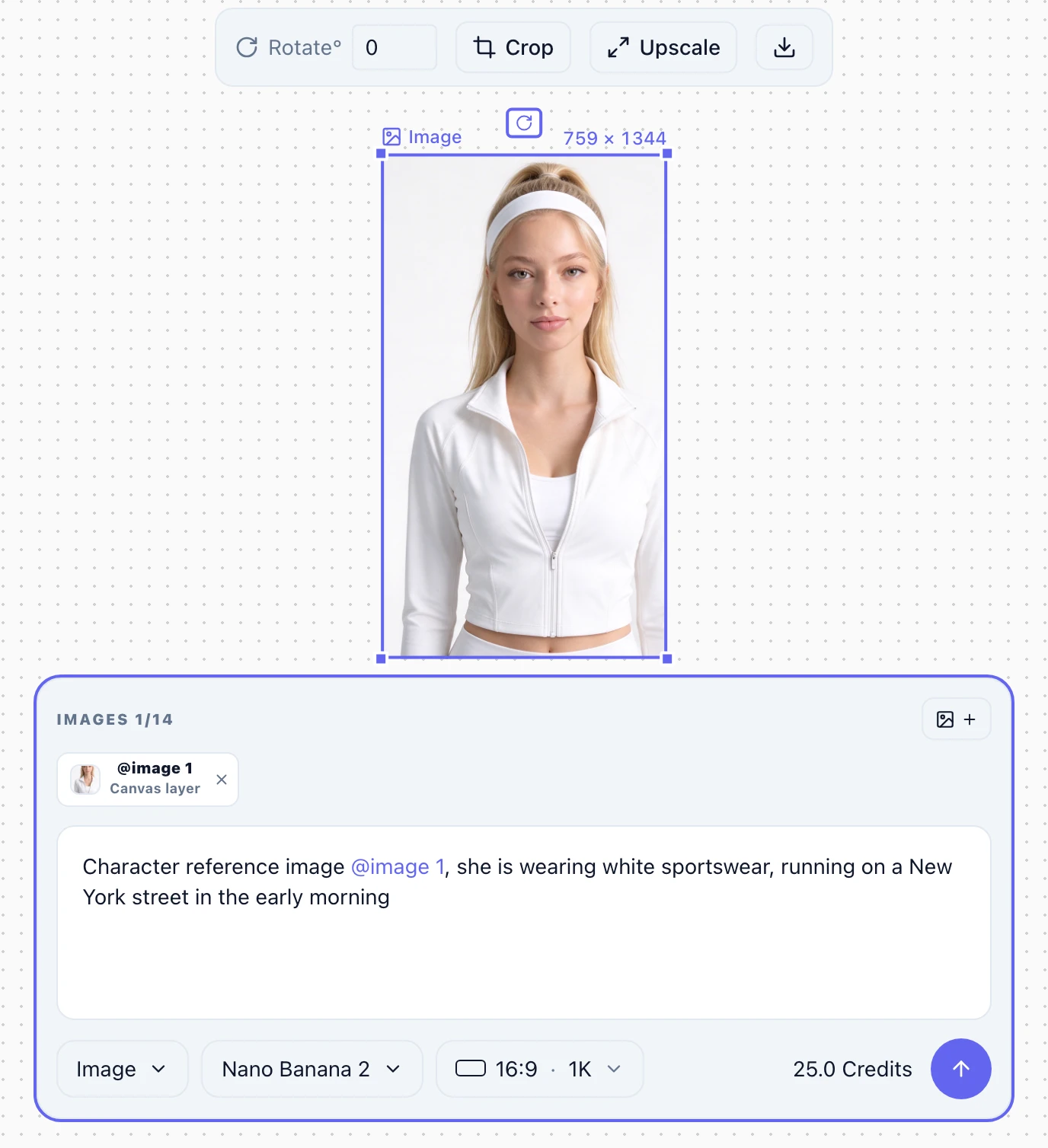
- Put the headshot on the canvas (or pick it from your characters right in the create bar at the bottom).
- In the create bar, choose Image and Nano Banana 2, 16:9, 1K.
- Point to the close-up with @image 1 in the prompt and describe the scene.
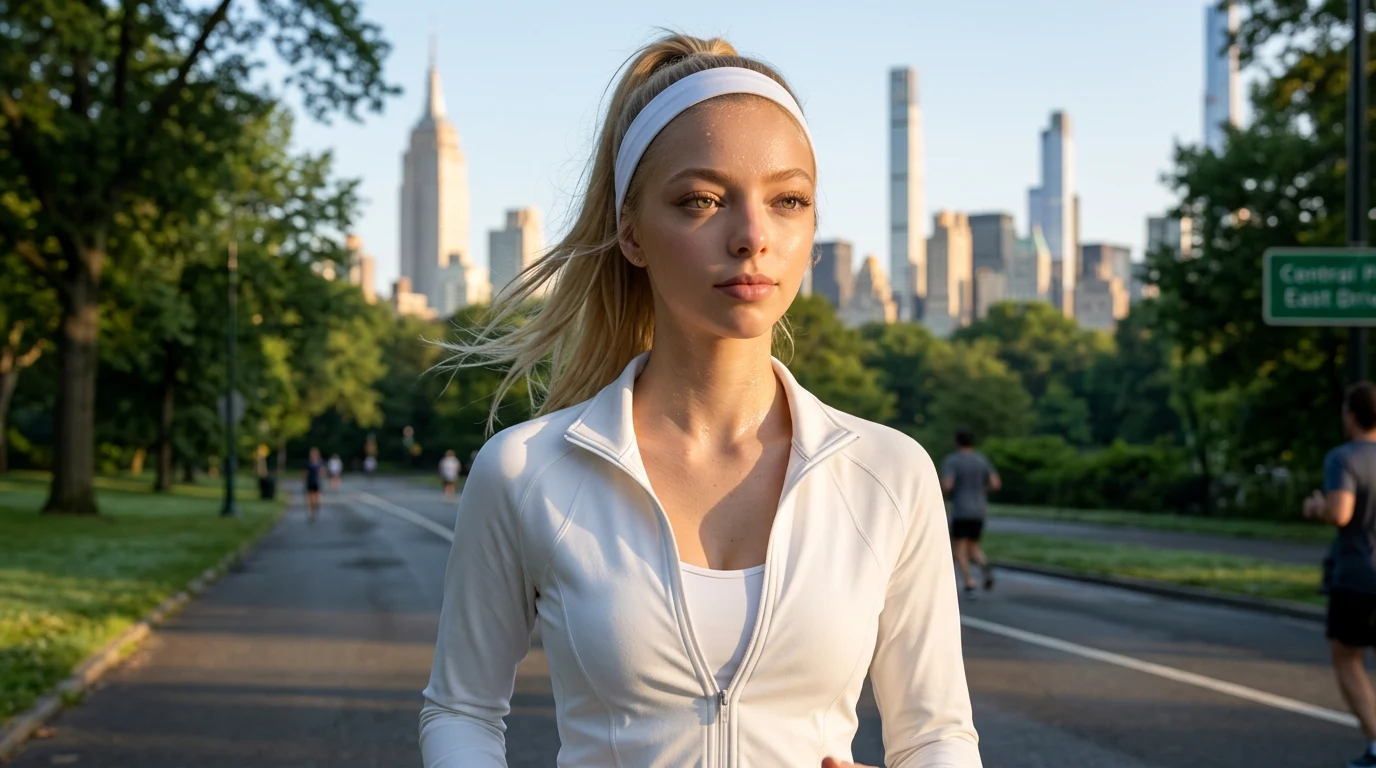
This image sets the video's location, light, outfit and camera angle.
Character reference image @image 1, she is wearing white sportswear, running on a New York street in the early morning
Step 3: Generate the bullet time video with MiniMax H3 multimodal
Finally, hand both images to the video model. In the Workspace:
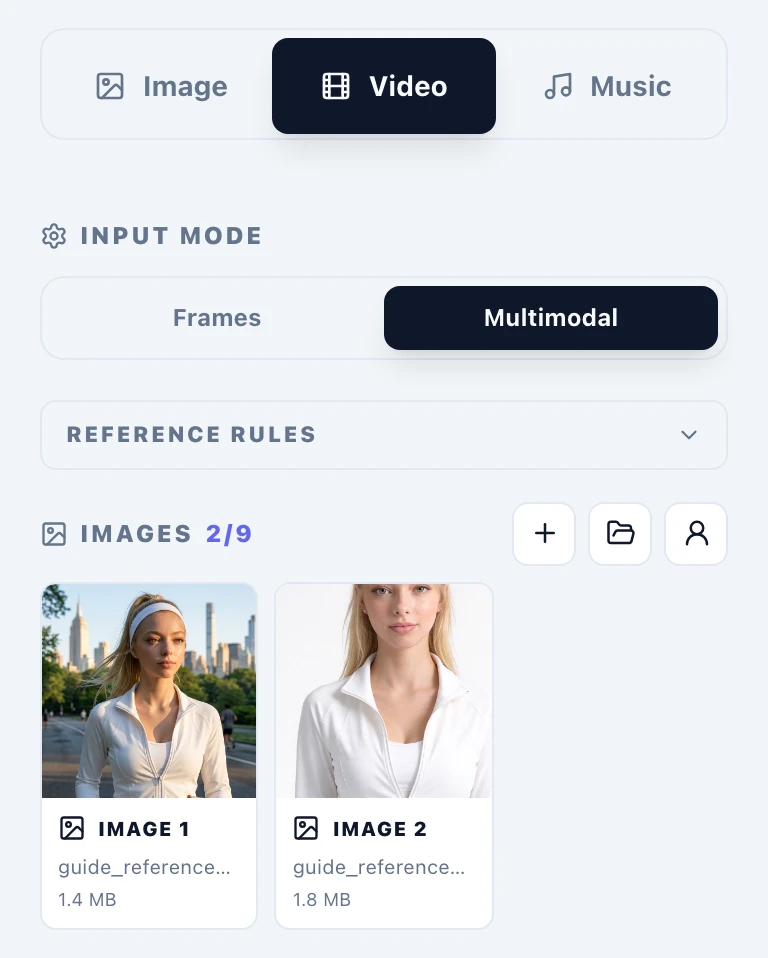
- Switch to Video, set Input Mode to Multimodal and choose MiniMax H3.
- Add two reference images under Images: the scene image first, then the headshot (the person button picks it straight from your characters).
- Set 16:9, 480p and 12 seconds.
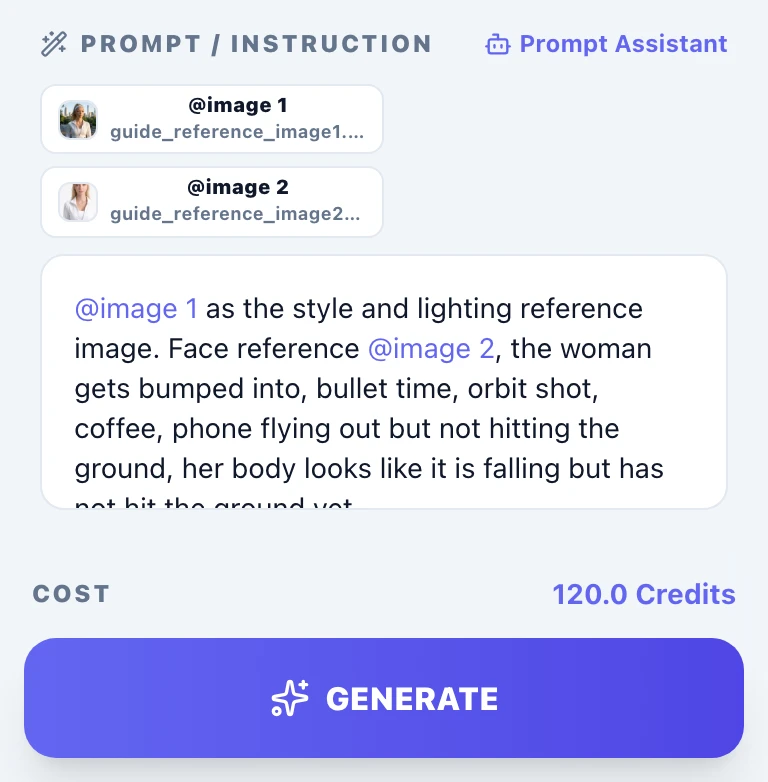
- Write the prompt, point to the two images with @image 1 and @image 2, and generate.
@image 1 as the style and lighting reference image. Face reference @image 2, the woman gets bumped into, bullet time, orbit shot, coffee, phone flying out but not hitting the ground, her body looks like it is falling but has not hit the ground yet
What each part of the prompt does
- "@image 1 as the style and lighting reference image": the shot keeps the scene image's early-morning backlight, park and skyline.
- "Face reference @image 2": the face follows the close-up, so she is still the same person when the camera reaches her side.
- "bullet time", "orbit shot": the effect and the camera move. In this clip H3 delivered both: time almost stops and the camera circles her.
- "coffee, phone flying out but not hitting the ground": gives the frozen moment something to look at. Nothing shows that time has stopped better than objects hanging in the air.
- "her body looks like it is falling but has not hit the ground yet": stops the action before the fall, so the camera has time to go around her.
The prompt says she gets bumped into, but nobody bumps her on screen; it looks more like she slips and loses her balance. That is why the homepage story calls this scene "The Slip".
Why two reference images
One image can't do both jobs well. With only the close-up, the model knows what she looks like but not where she is or where the light comes from. With only the scene image, her face is small in the frame and can drift once the camera starts to move.
Use two, and say in the prompt which does what: the scene image for style and lighting, the close-up for the face. Then the model knows what to take from each image.
Choosing the settings
- Input Mode: to use reference images, choose Multimodal. In this mode MiniMax H3 takes up to 9 reference images.
- Duration: 5 to 15 seconds. Bullet time needs room for the orbit; this clip used 12 seconds.
- Resolution: 480p, 768p, 2K or 4K; this clip used 480p. Higher resolutions and longer clips use more credits, and the cost shows before you generate.
- Make a few: the same prompt gives a different result every time. Generate a few and keep the best.
Frequently asked questions
What is bullet time?
Bullet time is a film effect where time almost stops while the camera moves around a frozen subject. The 1999 film The Matrix made it famous. Back then it took a ring of cameras firing together; with an AI video model, two reference images and one prompt are enough.
How do I write a bullet time prompt?
Spell out four things: the effect (bullet time), the camera (orbit shot), what hangs in the air (such as coffee and a phone) and a body stopped mid-action (such as about to fall but not yet down). If you use reference images, also say which one sets the style and lighting and which one sets the face.
Can I use just one reference image?
Yes, but splitting the job is steadier. A close-up says nothing about the scene and the light, and in a scene image the face is too small. With two images and a prompt that says which does what, both the person and the shot are more likely to come out right.
How many reference images does MiniMax H3 multimodal take?
Up to 9 images. In Sky Studio, open Video in the Workspace, choose Multimodal and MiniMax H3, and point to each image in the prompt with tags like @image 1 and @image 2.
How long and how sharp can the video be?
MiniMax H3 multimodal generates 5 to 15 seconds at 480p, 768p, 2K or 4K. This clip is 480p and 12 seconds.
Will the face be the same every time?
Not 100%: every AI generation has some randomness. A clear front close-up as the reference, named as the face reference in the prompt, reduces drift; check each result against the close-up.
Do I have to make the close-up with the character system?
No, any clear front close-up works. The character system gives you front, side, back and headshot images in one go, ready for new outfits and scenes, and you can pick them from your characters on the Cinematic Canvas and in the Workspace.
Do I need a subscription to make this in Sky Studio?
No. Sky Studio has no subscription: you pay credits for what you generate and see the cost before you generate. Credits don't reset at the end of the month and never expire.
Can I use the video commercially?
Under Sky Studio's Terms, the output is yours (subject to the rights of model providers and third parties). Make sure you have the right to use the likeness of anyone in your reference images. We don't sell your data, and we don't train AI models on what you upload or create.