Guide
How to make an AI character sheet: from one sentence to a character you can put in videos, in 5 steps
On Sky Studio you make a character sheet on the Characters page: write a description of the character (and add a reference image if you like), pick the models and click Create Character. You get one sheet with a front close-up, a full-body front view, a side view and a back view, split automatically into four images (front, side, back and headshot) and saved as a character. Check the views and the left and right details, regenerate or replace a single image if something is off, and the character is ready to call up on the Cinematic Canvas and in the workspace. Below: how to write the description, pick a model, check and fix the result, and use the character.
What you need before you start
- A Sky Studio account: the Characters page works when you are signed in.
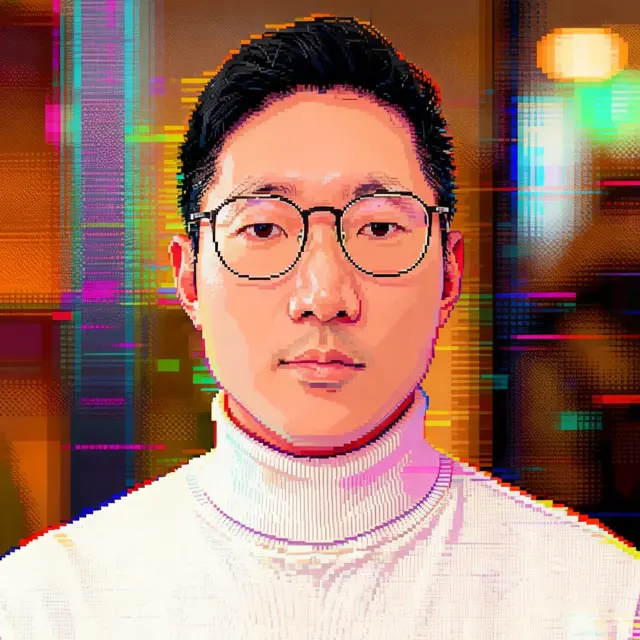
- A short description of the character, such as "a man in his early 20s". The more specific it is, the closer the look.
- Optional: one reference image to keep a face or a design, such as a photo or a character you drew.
- If you already have front, side and back images, skip to "Already have a sheet: import it".
First, what you get
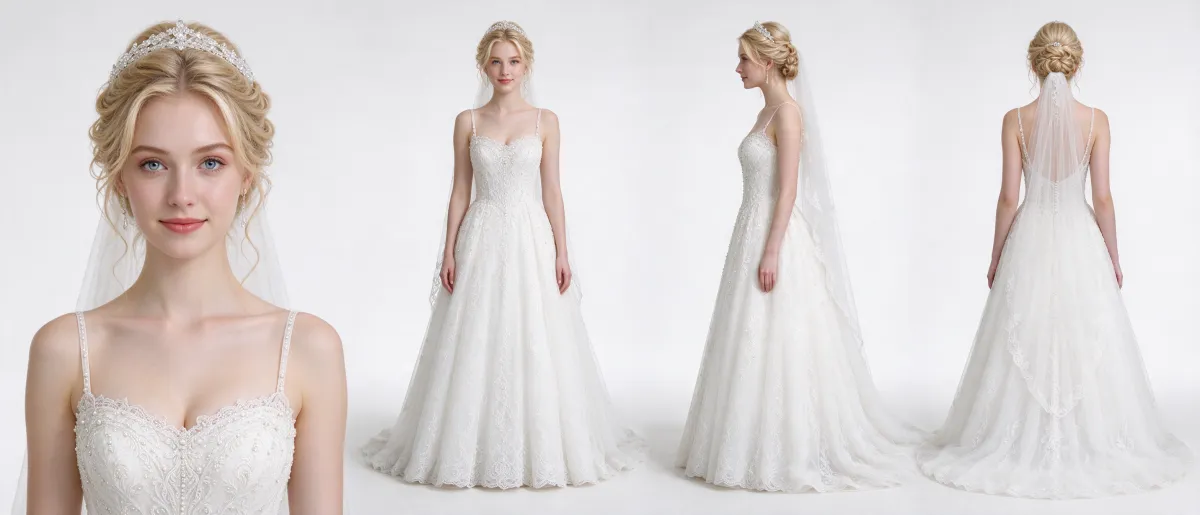
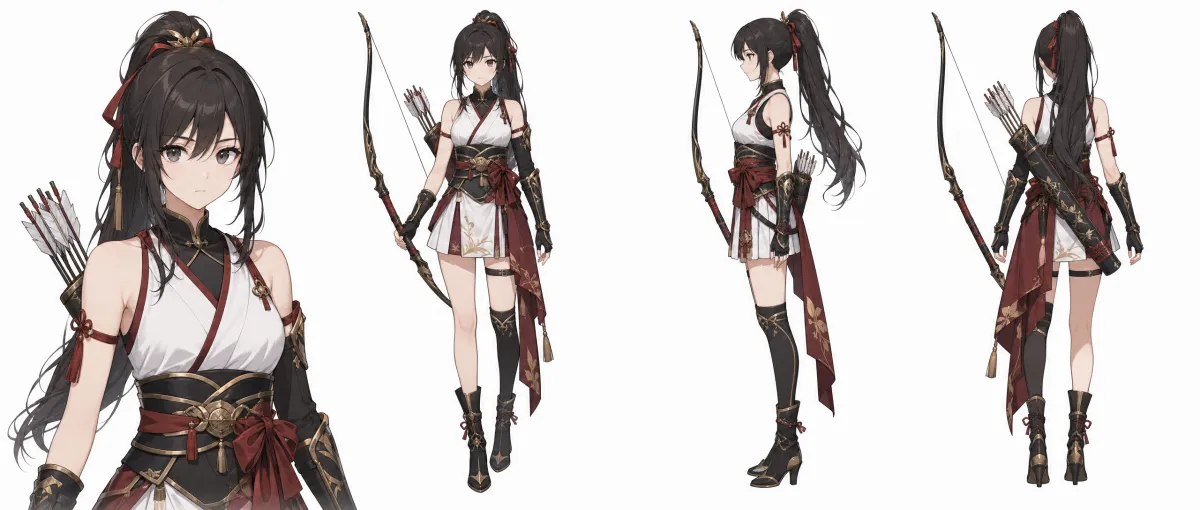
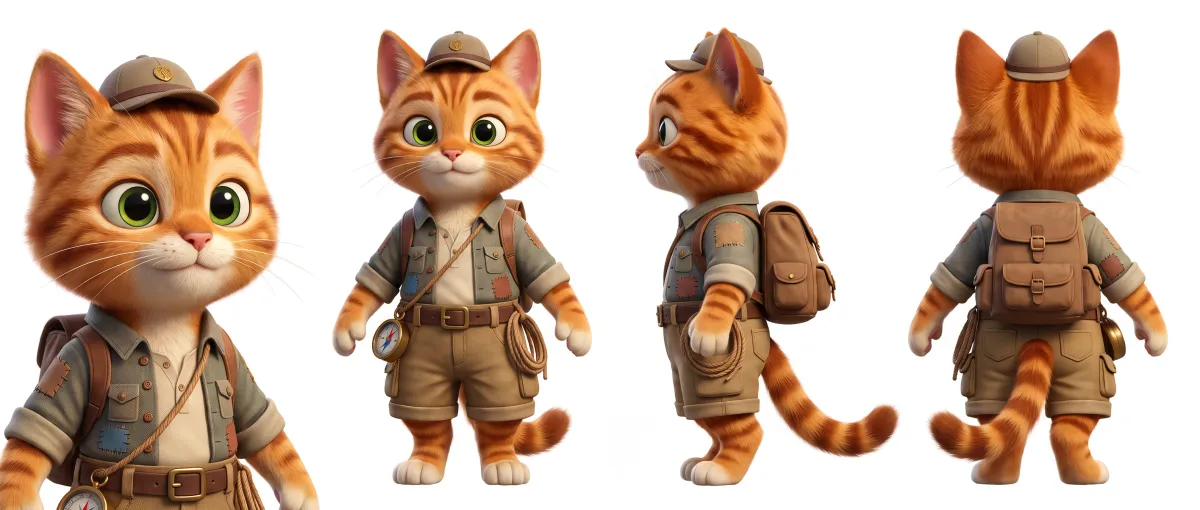
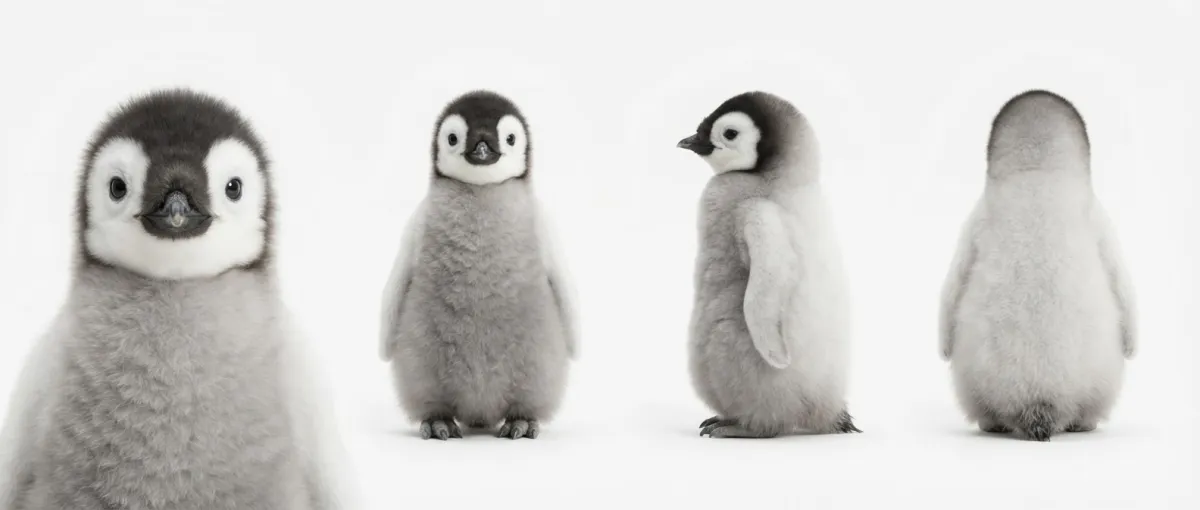
The four characters below were all generated on the Characters page: a realistic person, anime, a 3D cartoon and a realistic animal. More examples are on the AI character turnaround page.
Step 1: open the Characters page and describe the character
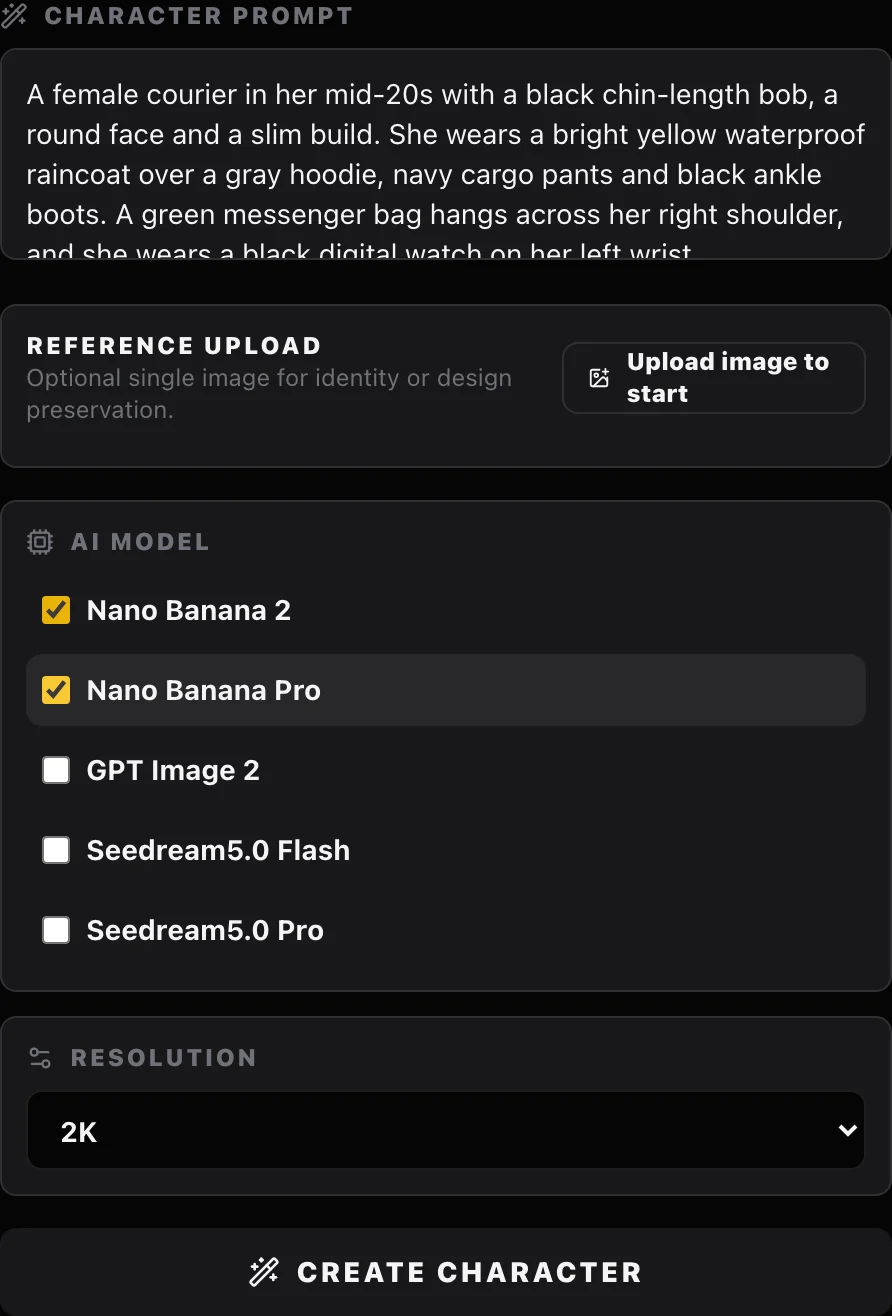
Open the Characters page and write your character in Character prompt. One sentence is enough, such as "a man in his early 20s"; for more control, add details in this order:
- Who: age, gender, job, or what animal or creature it is.
- Looks: hairstyle and hair color, face shape, build.
- Clothes: from the outside in, jacket, top, bottoms and shoes, with colors and materials.
- Accessories and props: earrings, bags, weapons; say which side, such as "one silver earring in her left ear".
- Style: realistic photo, Japanese anime, 3D cartoon or watercolor illustration.
Describe the character only; the layout of the front, side and back views and the white background are handled by the Characters page.
A female courier in her mid-20s with a black chin-length bob, a round face and a slim build. She wears a bright yellow waterproof raincoat over a gray hoodie, navy cargo pants and black ankle boots. A green messenger bag hangs across her right shoulder, and she wears a black digital watch on her left wrist. Photorealistic.
Step 2: to keep a face, upload a reference image
If you have a photo or an illustration of the character, put one in Reference upload to keep the face or the design; the button then reads Create From Reference. In the description, write only what should change, such as the outfit: the reference keeps the likeness, the description sets what they wear and the style.
Upload only images you have the right to use: your own photos, characters you drew or licensed material.
Step 3: pick models and a resolution
AI Model takes several picks: each ticked model makes its own candidate character, so you can compare them and keep the best. The checkboxes add models; clicking a model name keeps only that one.
- The Characters page has five models: Nano Banana 2 (ticked by default), Nano Banana Pro, GPT Image 2, Seedream5.0 Flash and Seedream5.0 Pro.
- Resolution is 2K or 4K. The two Seedream5.0 models only do 2K and hide when you pick 4K.
- Not sure? Tick a few and generate them together. Models read the same sentence differently: with left and right details, some get them right and some flip them.
We compared several models with the same four-view process the Characters page uses; see AI character turnaround tools.
Step 4: when it is done, compare it with the source sheet
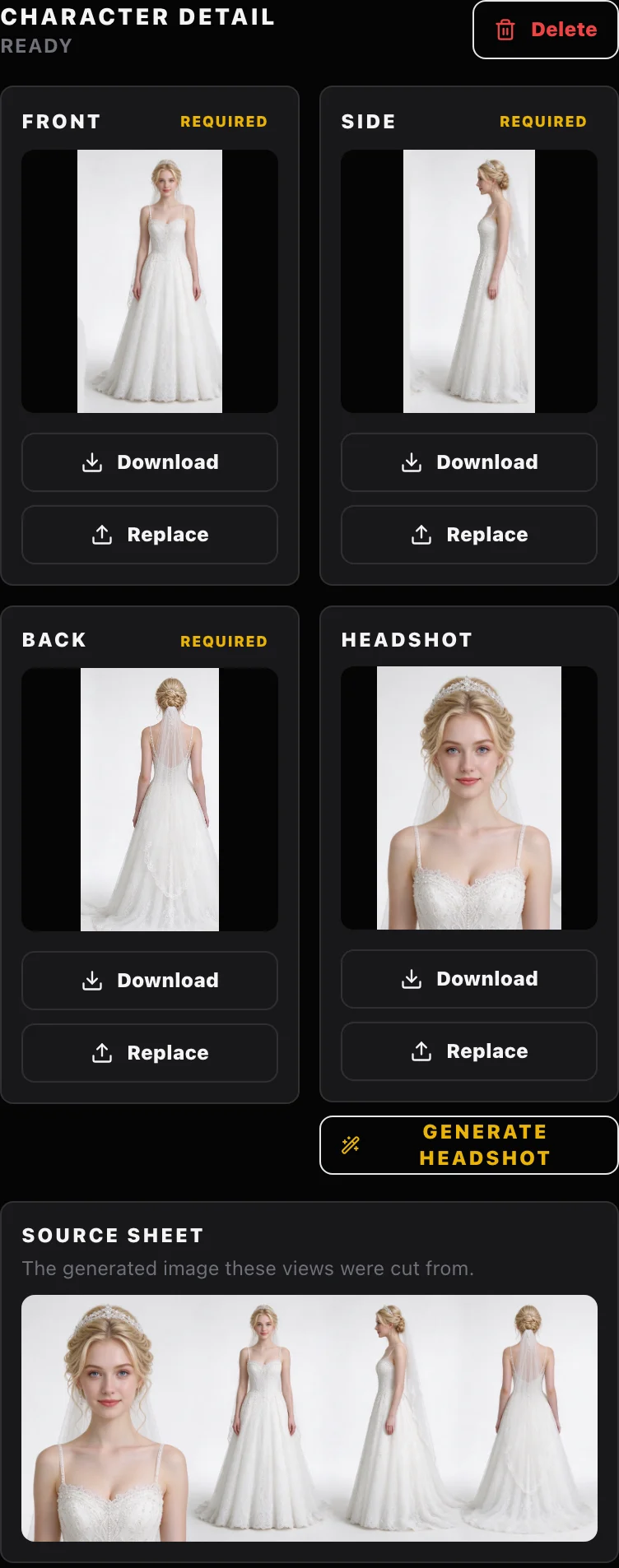
Click Create Character (Create From Reference if you uploaded an image), and each ticked model makes one wide sheet with a front close-up, a full-body front view, a side view and a back view. The sheet is split automatically into four images (front, side, back and headshot) and saved as a character.
Open the Character detail; the generated source sheet is below. Check:
- Whether the views were cut well: if the automatic check finds a view that may be cut wrong, the page asks you to compare it with the source sheet.
- Consistency: the front, side and back show the same outfit and colors.
- Left and right: which side the earring, bag or braid is on; seen from the back it should be on the other side.
- The face: the headshot should be sharp. When you make video, the model recognizes the face mainly from it.
If something is off
- You don't like the whole thing: adjust the description and generate again, or try another model. Every AI generation comes out different, so a few tries are normal.
- Only one image is wrong: in the Character detail, click Replace on that image and upload another. No need to redo the set.
- You want a new headshot: Generate Headshot makes one from the front view, which must be ready first.
- Give it a name you can find: change the Character name so it is easy to pick in your story.
Step 5: use the character in images and videos
Once saved, you can call up the character here:
- Cinematic Canvas: in the Story Detail, add the character from the library and write dialogue as "@Character: line"; every shot is generated with these character images.
- The Cinematic Canvas create bar: pick Character as the source to use it as a reference for images or video.
- Workspace: when making images, the Character button under each reference slot opens the library; in video, with Multimodal (Seedance 2.0 Pro, MiniMax H3, Grok Imagine and Gemini Omni Flash support it), the person icon in the image area (labeled Character roles) lets you pick the character as a reference.
To keep the same character across several shots, see how to keep a character consistent in AI video.
Already have a sheet: import it
If you already drew or made the front, side and back of the character, upload them in Manual role image import (the headshot is optional) and click Import Character. It is saved as a character like any generated one, ready for the Cinematic Canvas and the workspace.
Why use the Characters page instead of writing a sheet prompt yourself
Any image generator can try a character sheet, but each time you write long layout instructions, regenerate again and again, and crop by hand. The Characters page takes care of that:
- A fixed layout: one wide sheet with the front close-up, full-body front, side and back, drawn in the same design.
- Automatic cropping: four images (front, side, back and headshot), nothing to crop yourself.
- Ready to reuse: saved as a character, it is one click away on the Cinematic Canvas and in the workspace, with no re-uploading.
- A front close-up: made for video models to recognize the face, even across many shots.
You describe the character; the Characters page handles the layout.
Frequently asked questions
What is an AI character sheet, and what is it for?
It is one image with the front, side and back of the same character, which fixes the face and the outfit. Sky Studio's Characters page adds a front close-up; use the set as references for images and videos and the character stays more consistent from scene to scene.
Does one sentence really work?
Yes. A sentence like "a man in his early 20s" is enough to generate a sheet. To control hair, clothes, accessories and style, be more specific and add who, looks, clothes, accessories and style in that order.
Can I use a photo or an illustration as a reference?
Yes. Put it in Reference upload and the button changes to Create From Reference; the generation tries to keep the face or the design. Upload only images you have the right to use.
Which models does the Characters page have, and which should I pick?
Five: Nano Banana 2, Nano Banana Pro, GPT Image 2, Seedream5.0 Flash and Seedream5.0 Pro. Tick several with the checkboxes and each makes its own candidate, so you keep the best. For 4K, pick one of the first three; the two Seedream5.0 models stop at 2K.
What if left and right come out flipped?
State the side clearly in the description and generate again, or try another model: they don't all handle those details the same way. If only one image is wrong, you can also replace it in the Character detail.
What if a view was cut wrong?
Compare it with the source sheet below in the Character detail. If it is wrong, generate again, or click Replace on that image and upload another.
What is the headshot for?
It is the image a video model uses to recognize the face; with many shots, it helps the face stay the same. Generate Headshot makes it from the front view, which must be ready first.
I already drew a sheet. Can I use it?
Yes. Upload the front, side and back in Manual role image import (the headshot is optional) and click Import Character; it is saved as a character for the Cinematic Canvas and the workspace.
Where can I use the character?
On the Cinematic Canvas, add it from the library in the Story Detail, or pick Character as the source in the create bar. In the workspace, choose it from the image reference slots or from Multimodal in video.
How do I put the same character in several video shots?
Add the character to the story on the Cinematic Canvas: every shot is generated with its images. The full process, with a real example, is in how to keep a character consistent in AI video.
Do I need a subscription to make character sheets?
No. Sky Studio has no subscription: you pay with credits only for what you generate, and credits never reset at month end or expire.
Can I use the images commercially? Are they used to train AI?
Under Sky Studio's Terms, the outputs are yours (except for rights held by model providers and third parties); make sure you have the right to use the people and works in your references. We never sell your data and never use your uploads or creations to train AI models.